Your cart is empty.
Browse plugins
Description
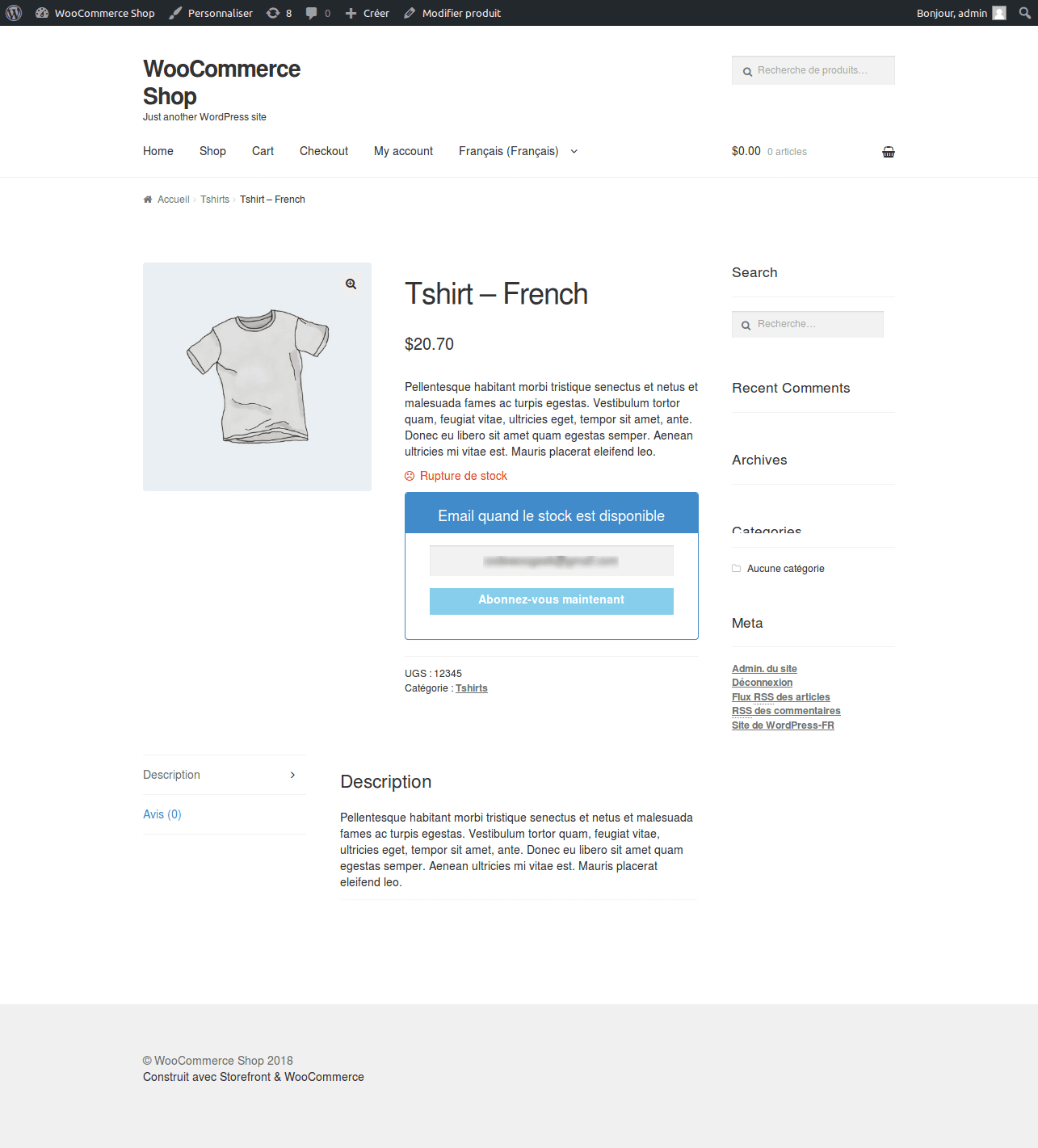
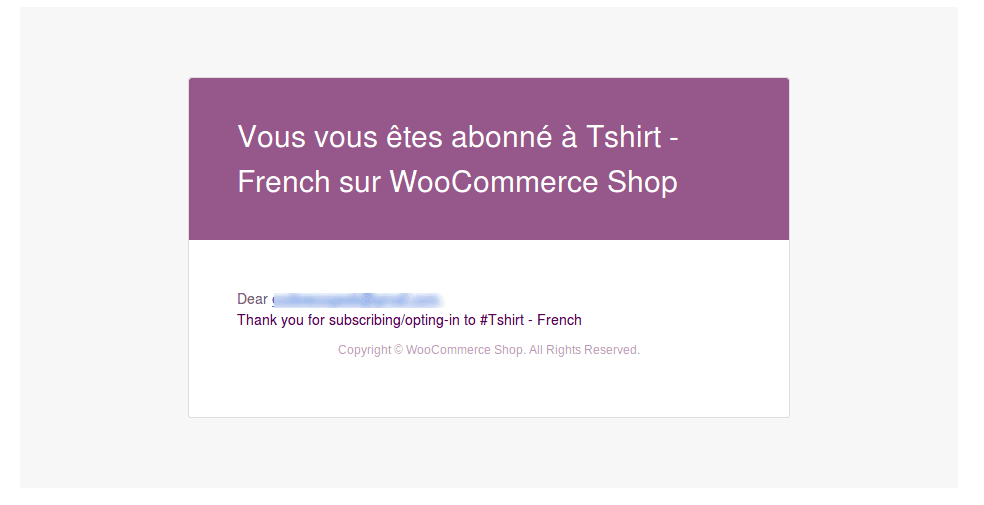
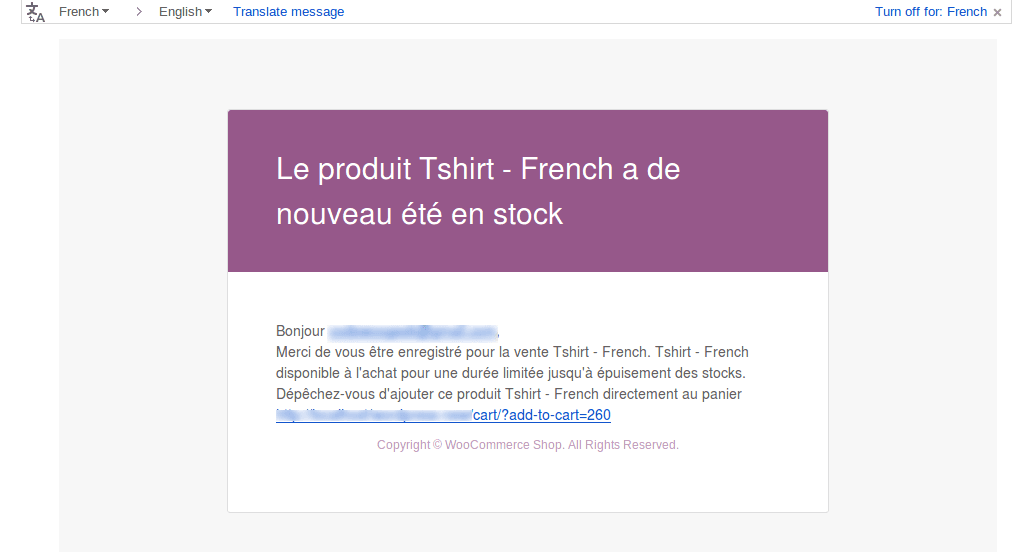
Full WPML support: remembers the language each person subscribed in, treats translations of a product as one waitlist, and sends every notification in the subscriber’s own language. Records which language somebody subscribed in, treats every translation of a product as one waitlist, and sends each person their notification in their own language.
How it works
- The language somebody subscribed in is recorded on their row. Before each message is built the site is switched into that language, and afterwards it is always restored to the language captured before the first switch, never to the previous recipient language. On a batched restock that distinction is what stops every later email inheriting the wrong one.
- Your email text is operator entered content, not a gettext string, so switching the site language does nothing to it. It is registered with WPML and looked up per language. Untranslated strings fall back to the original rather than arriving blank.
- Since version 7 the parent plugin sends through WooCommerce email classes, so the translated text is applied through the WooCommerce subject, heading and additional content filters. The older raw subject and message filters still exist but their result is discarded on that path, which is why earlier versions appeared to work and did not.
- WooCommerce resets the locale to the site default partway through sending a customer email. That is suppressed while a send is in progress, otherwise it undoes the switch and the template reverts to the site language while your own text stays translated.
Setting it up
- Go to WPML and then String Translation and filter by the domain “Back In Stock Notifier”. Translate the email subject, heading and body for each language you sell in.
- Check the translation status table in the add-on settings. A cross means that language will receive the original English text.
- Leave “Treat translations as one waitlist” on unless each translation of a product genuinely has its own stock.
- Test by subscribing on a translated product page, then restocking. The email should arrive fully translated, with a link to the translated product.
Common questions
Where do I actually edit the email text? The original is under WooCommerce and then Settings and then Emails, on the Back In Stock emails. The translations are under WPML and then String Translation. Editing the original creates a new string, so re-check the status table below after you change it.
My emails still arrive in the site language. That means the string has no translation for that language yet. The status table below shows exactly which ones are missing. Untranslated strings fall back to the original rather than arriving blank.
Subscribers on a translation are not being notified. Turn on “Treat translations as one waitlist”. Without it, a restock detected on the original product does not reach people who signed up on a translation.
The product name in the email is in the wrong language. The product name comes from whichever translation the person actually subscribed to, so it follows them correctly. If it looks wrong, check that the product genuinely has a translation in that language in WPML.
Should I use this with Polylang? No. Use the Polylang add-on instead, and do not run both at once.
Data and privacy
- Stored per subscriber: the language code they subscribed in.
- Nothing is sent to any third party. Translation lookups are local to WPML.
Additional information
| License | Starter License, Growth License, Ultimate License |
|---|
Related products
Back In stock Notifier for WooCommerce: Add-ons
Double Opt-In Add-on - Back In Stock Notifier for WooCommerce
From
$19.00
One-time
Back In stock Notifier for WooCommerce: Add-ons
Polylang Add-on - Back In Stock Notifier for WooCommerce
From
$19.00
One-time
Back In stock Notifier for WooCommerce: Add-ons
Klaviyo - Back In Stock Notifier for WooCommerce
From
$19.00
One-time