
Your cart is empty.
Browse plugins
Description
Add extra fees in WooCommerce with conditions
Fees for WooCommerce Pro allows you to add additional charges at different stages of the purchase process.
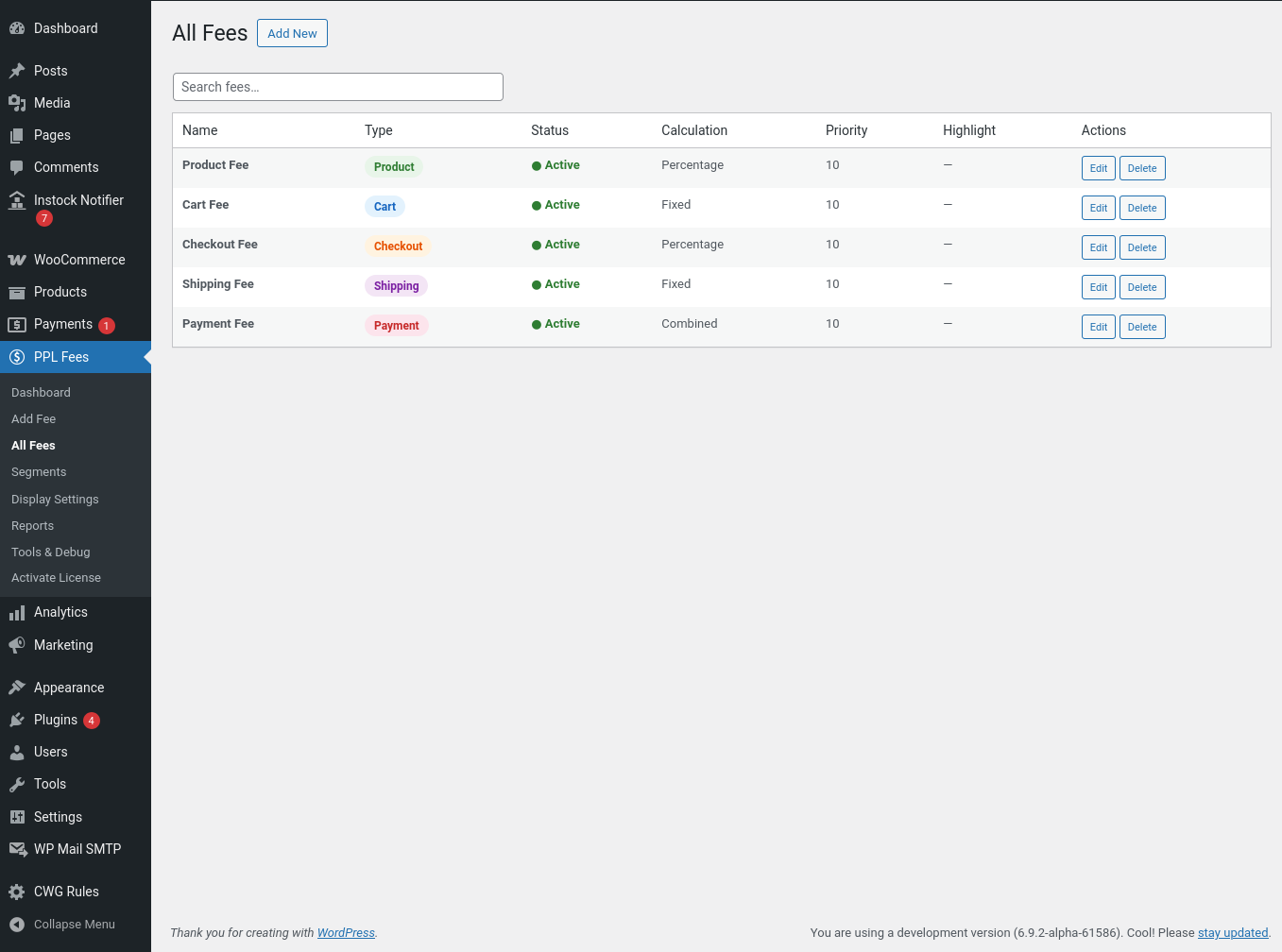
You can apply fees on the product page, cart, checkout, shipping method, or payment gateway based on specific conditions.
The plugin is designed to replace custom snippets and multiple fee plugins with a single structured system.
You control when the fee applies, how it is calculated, and how it is shown to the customer.
Fee locations
Product fees
Gift wrap, packaging, insurance, or category-based charges.
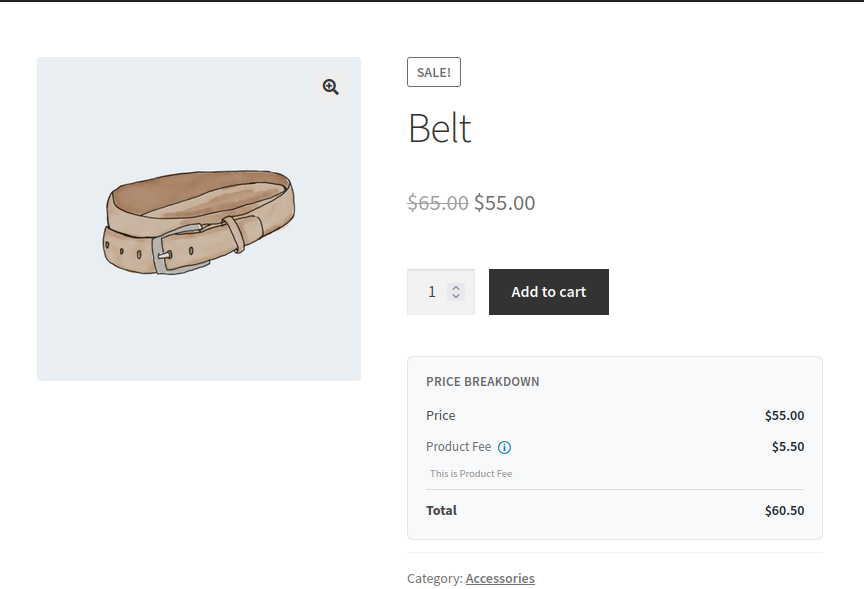
These can be shown on the product page and applied to the cart.
Cart fees
Small order fee, bulk handling fee, or quantity-based charges.
Checkout fees
Location-based service charges or customer-specific fees.
Shipping method fees
Extra cost for express delivery, pickup handling, or special logistics.
Payment method fees
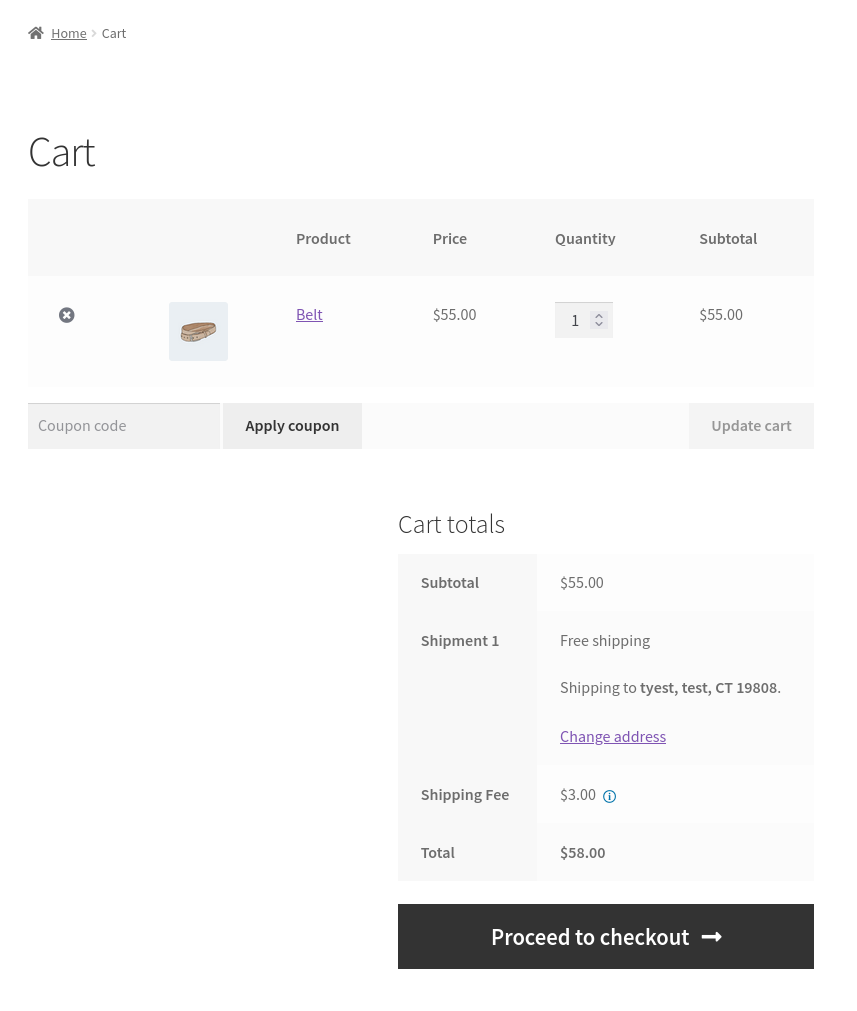
Cash on delivery surcharge or gateway processing charges such as percentage plus fixed amount.
Conditions
Fees can be applied based on:
-
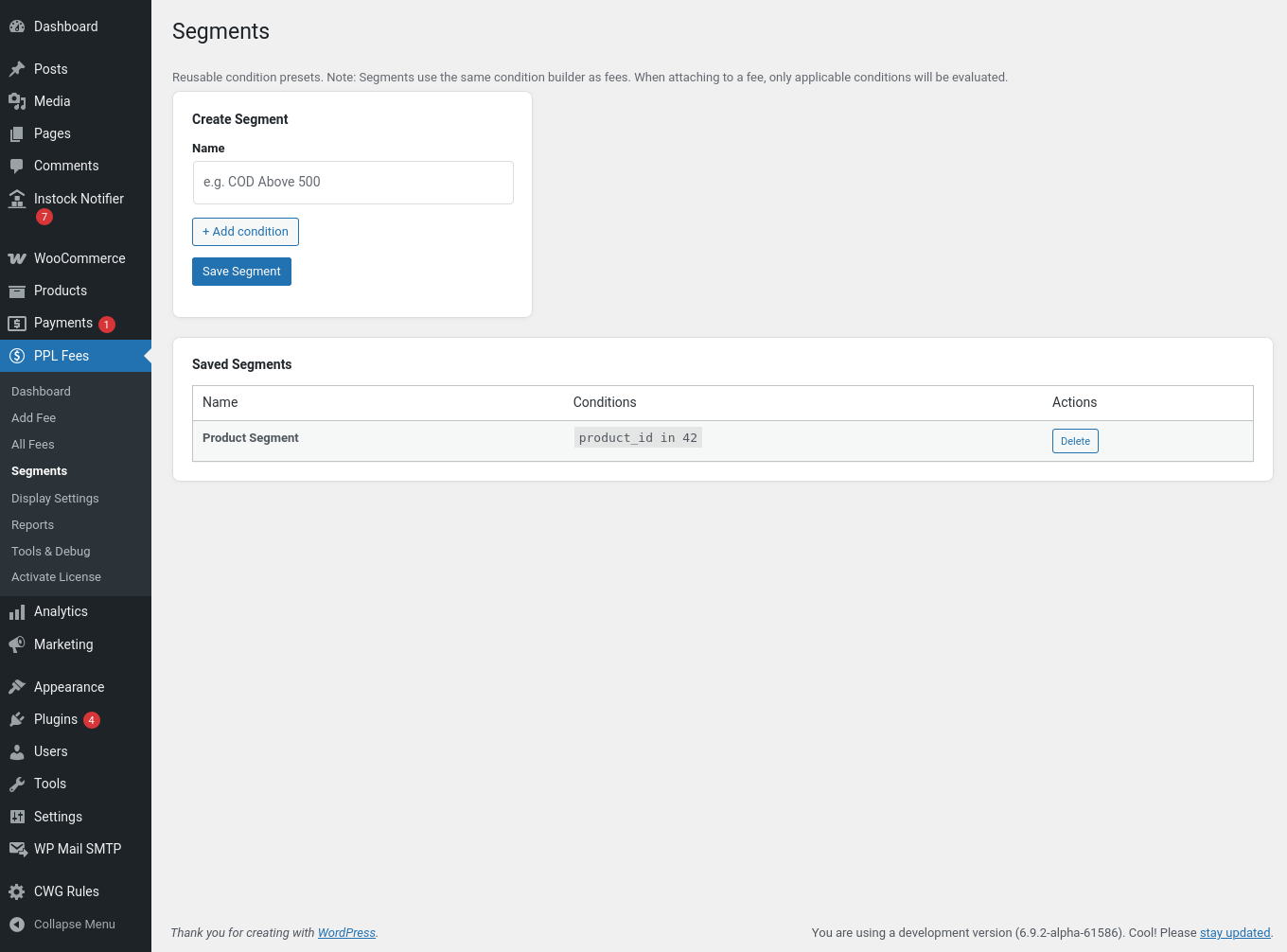
Products, categories, tags, and variations
-
Cart subtotal, quantity, weight, and item count
-
Customer role or login status
-
Billing or shipping address
-
Shipping method
-
Payment gateway
-
Day of the week
Multiple conditions can be combined.
Calculation methods
-
Fixed amount
-
Percentage
-
Percentage plus fixed
-
Per quantity
-
Per weight
-
Minimum and maximum limits
-
Rounding options
Taxable fees follow WooCommerce tax classes.
Setup process
Create a fee using a step-based screen:
-
Choose fee location
-
Add conditions (optional)
-
Select calculation
-
Set label and display
-
Save
Testing
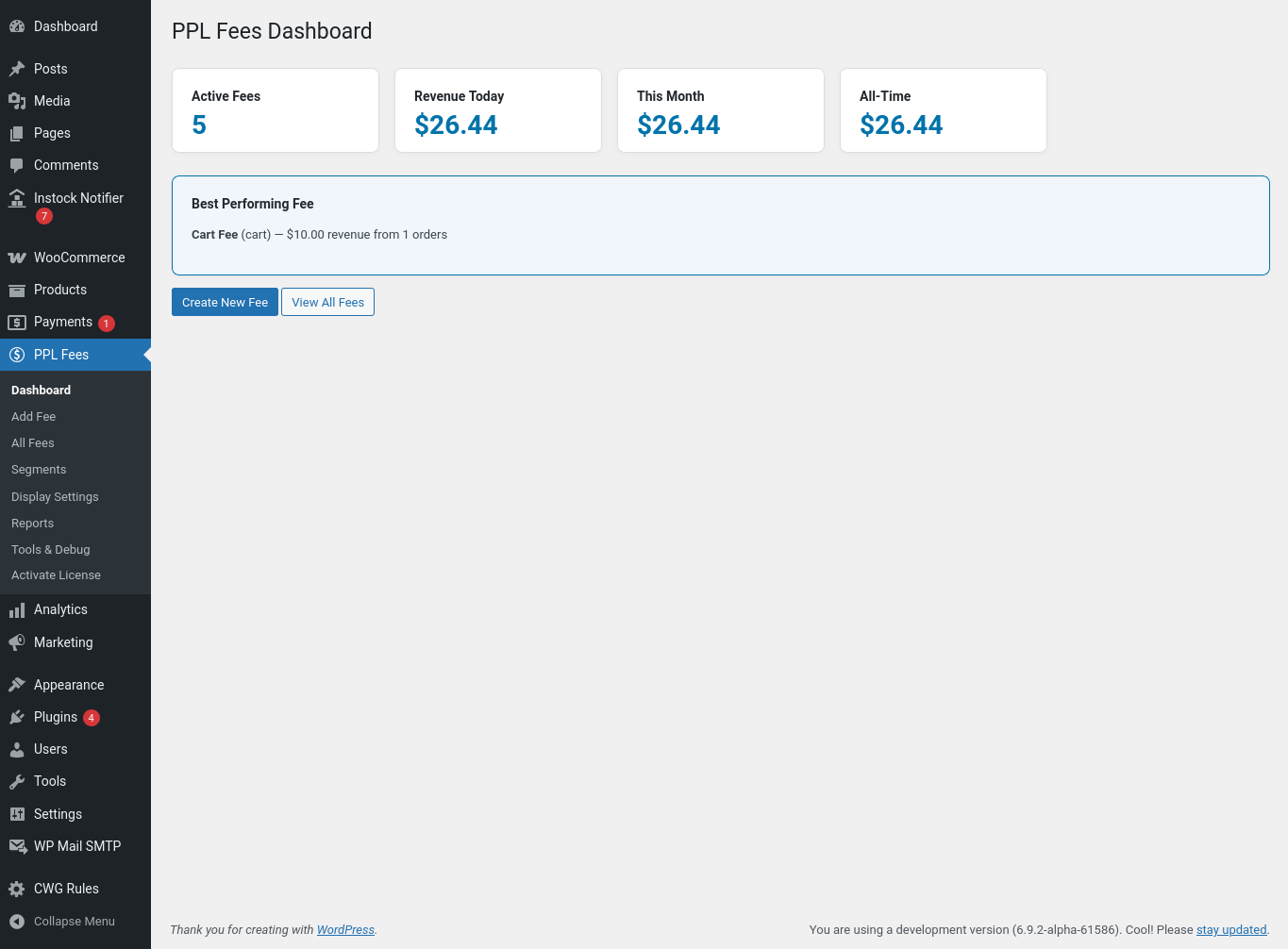
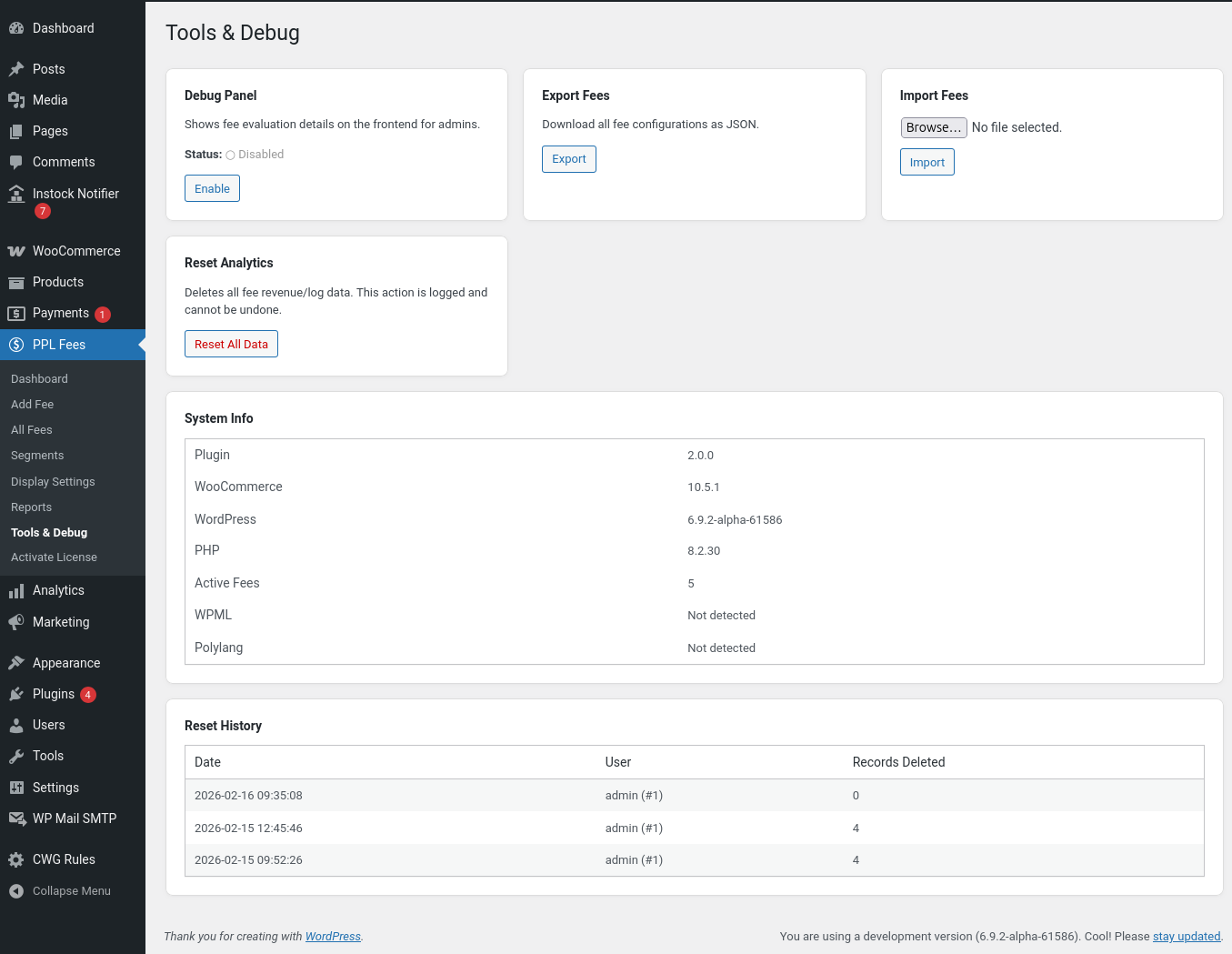
Administrators can view how fees are evaluated on the frontend and check why a fee was applied or skipped.
Multilingual
Compatible with WPML and Polylang.
Fee labels and descriptions can be translated using string translation.
Import and export
Export all rules and import them into another site.
Useful for staging and multi-store setups.
Developer support
Hooks and filters are available to modify calculations or conditions programmatically.
How the fee system works
Fees for WooCommerce Pro adds a rule-based fee system to WooCommerce.
You can create additional charges that apply automatically depending on products in the cart, totals, customer details, location, shipping method, or payment gateway.
Each fee is evaluated during the WooCommerce cart and checkout process and only applies when its conditions are satisfied.
The plugin does not modify product prices directly.
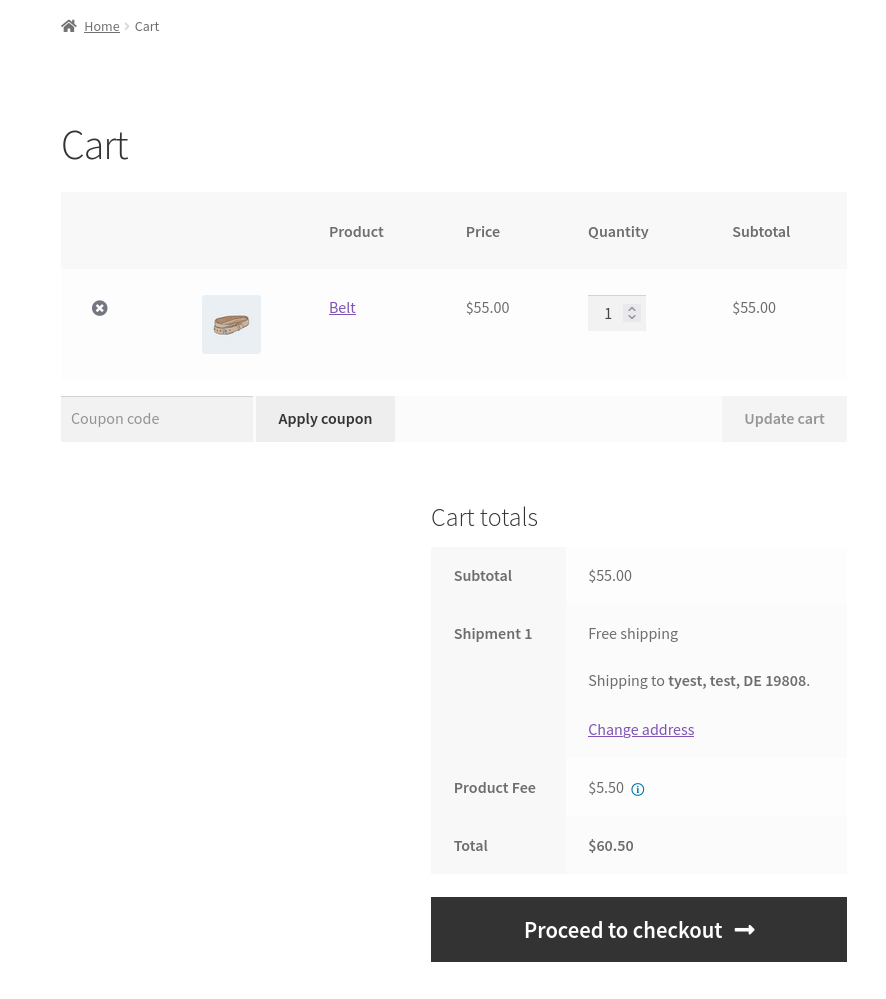
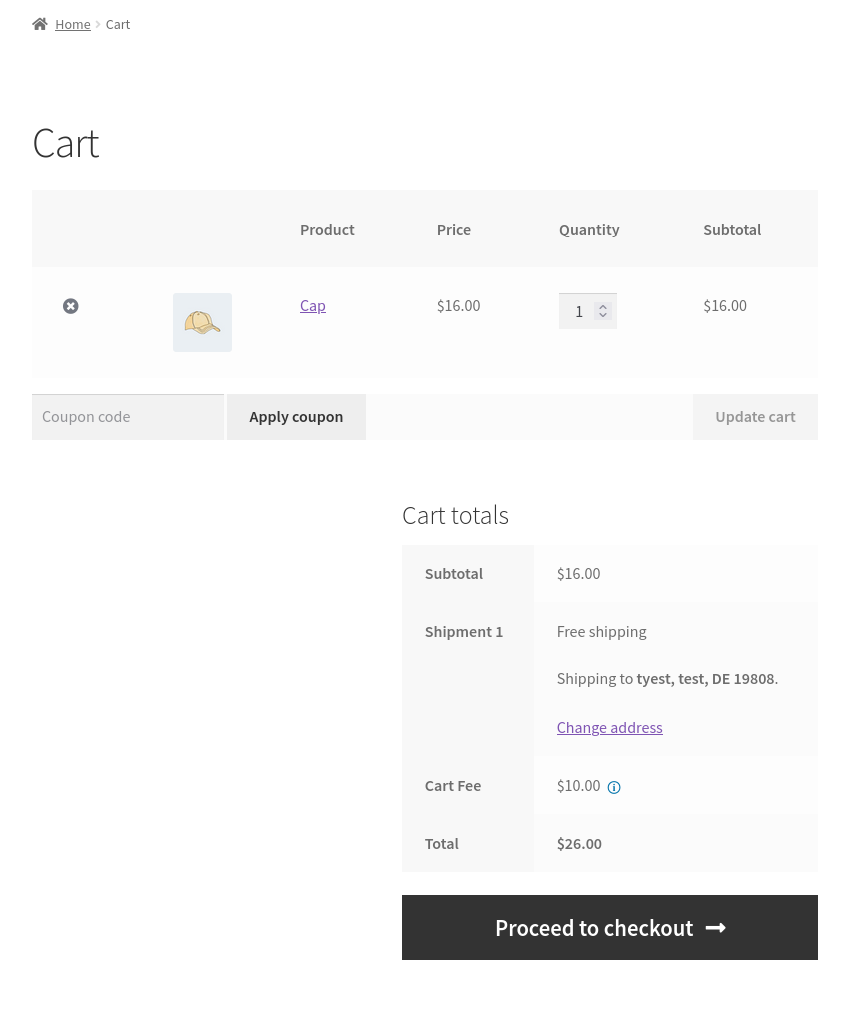
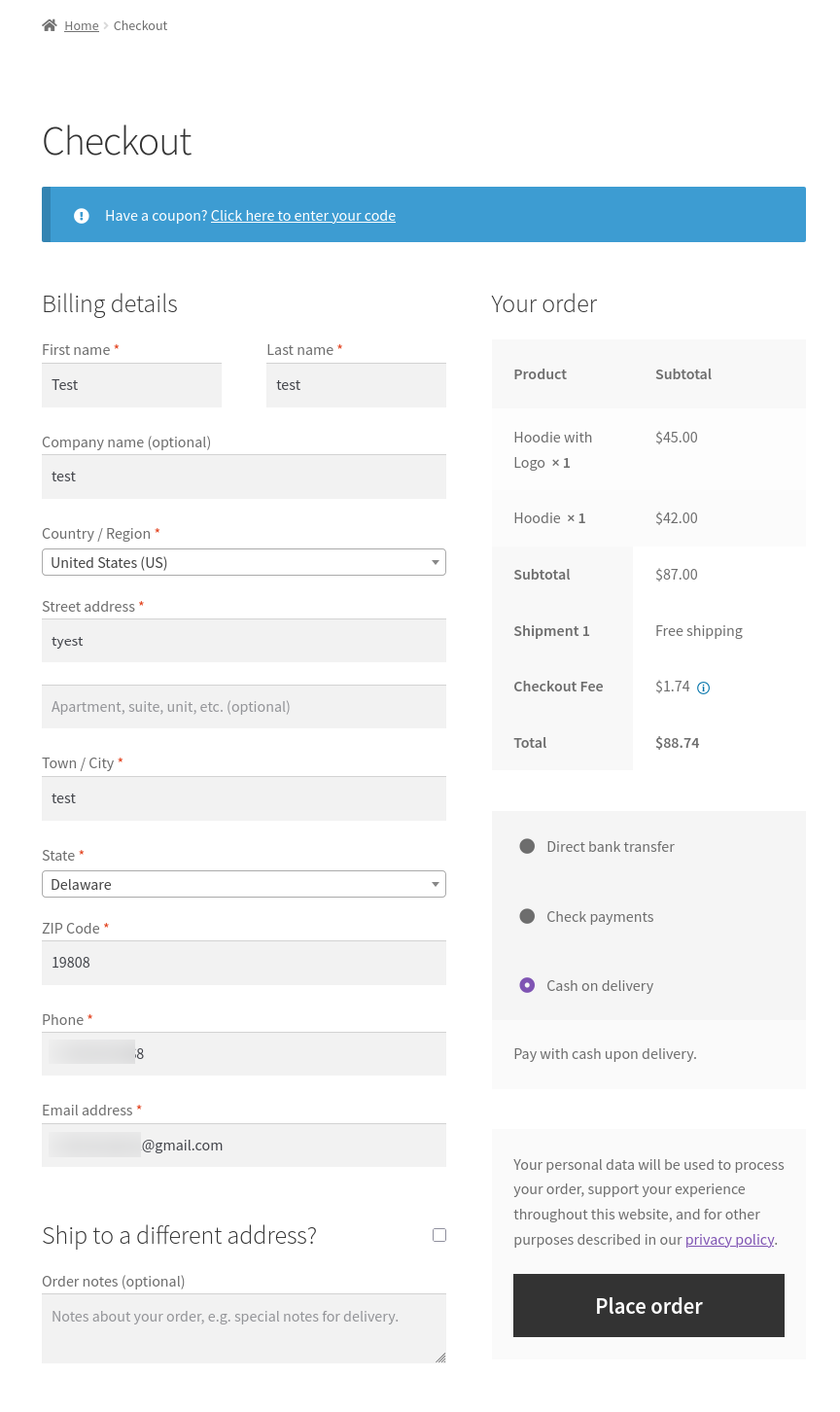
Instead, it adds transparent fee rows so customers clearly see why an extra charge exists.
A fee setup consists of four parts:
-
Location — where the fee applies (product, cart, checkout, shipping, payment)
-
Conditions — when the fee should apply
-
Calculation — how the amount is calculated
-
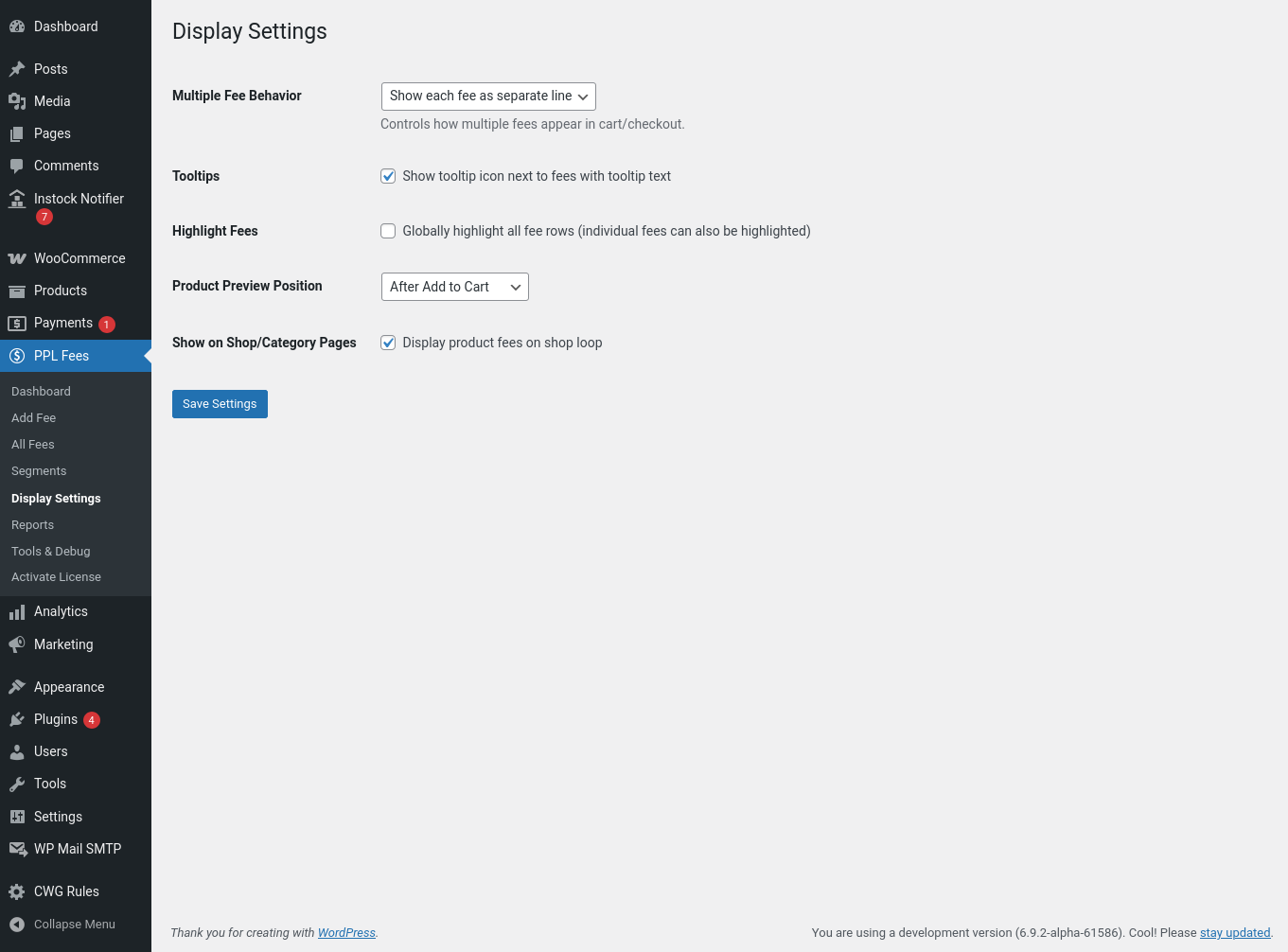
Display — what the customer sees
Steps to Configure a Fee
After activating the plugin:
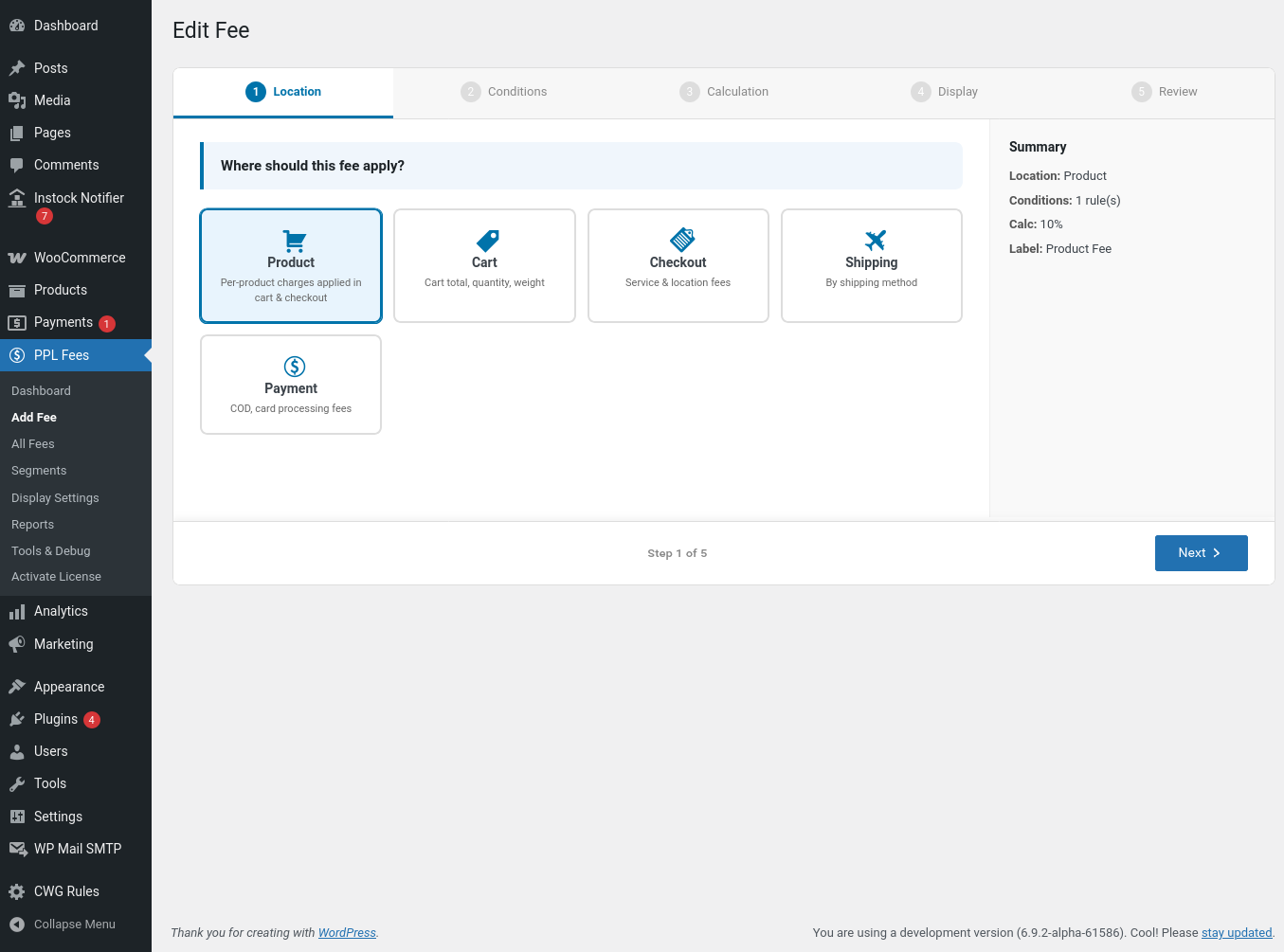
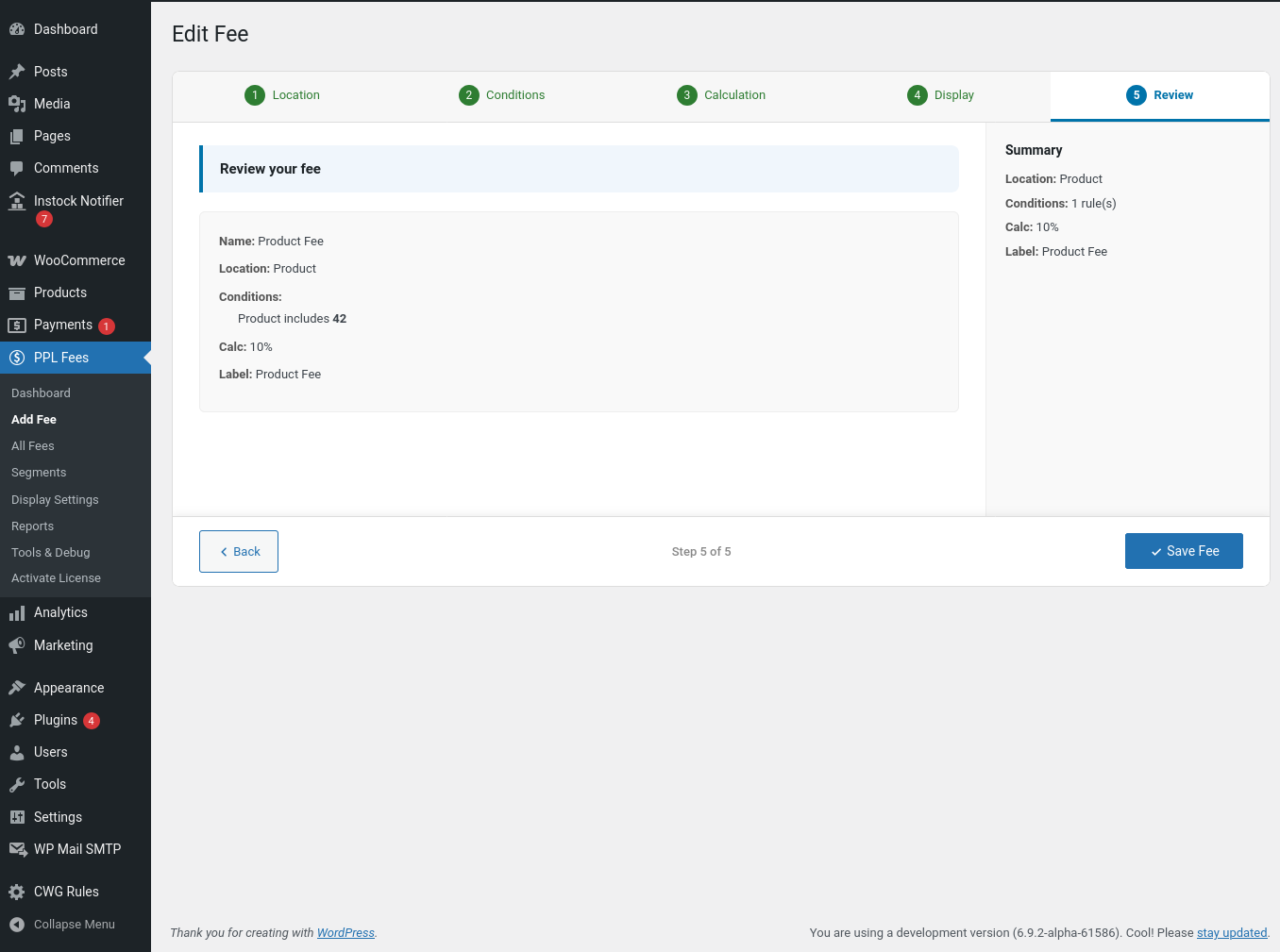
Go to PPL Fees → Add Fee
You will create the fee using a step-based screen.
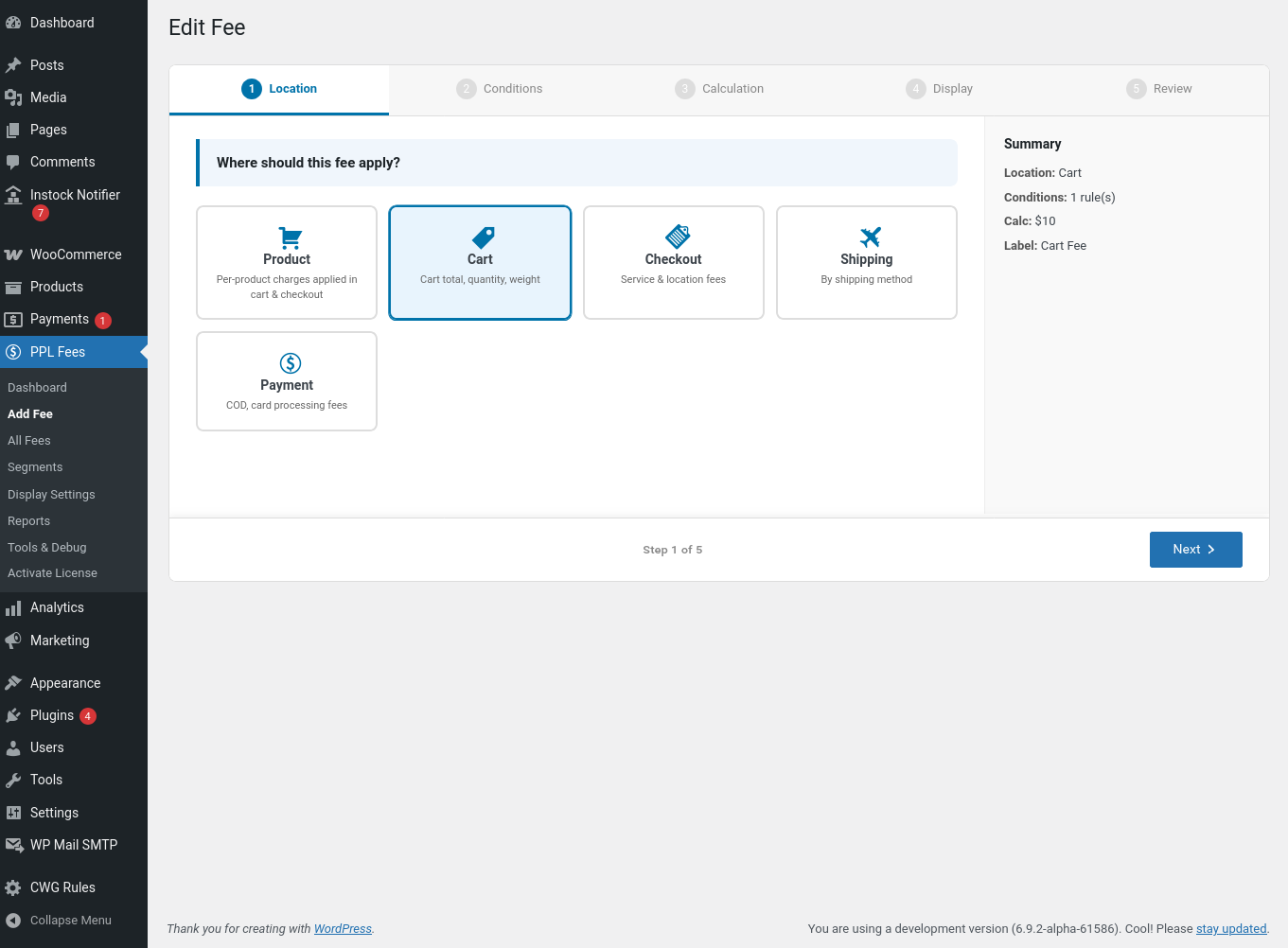
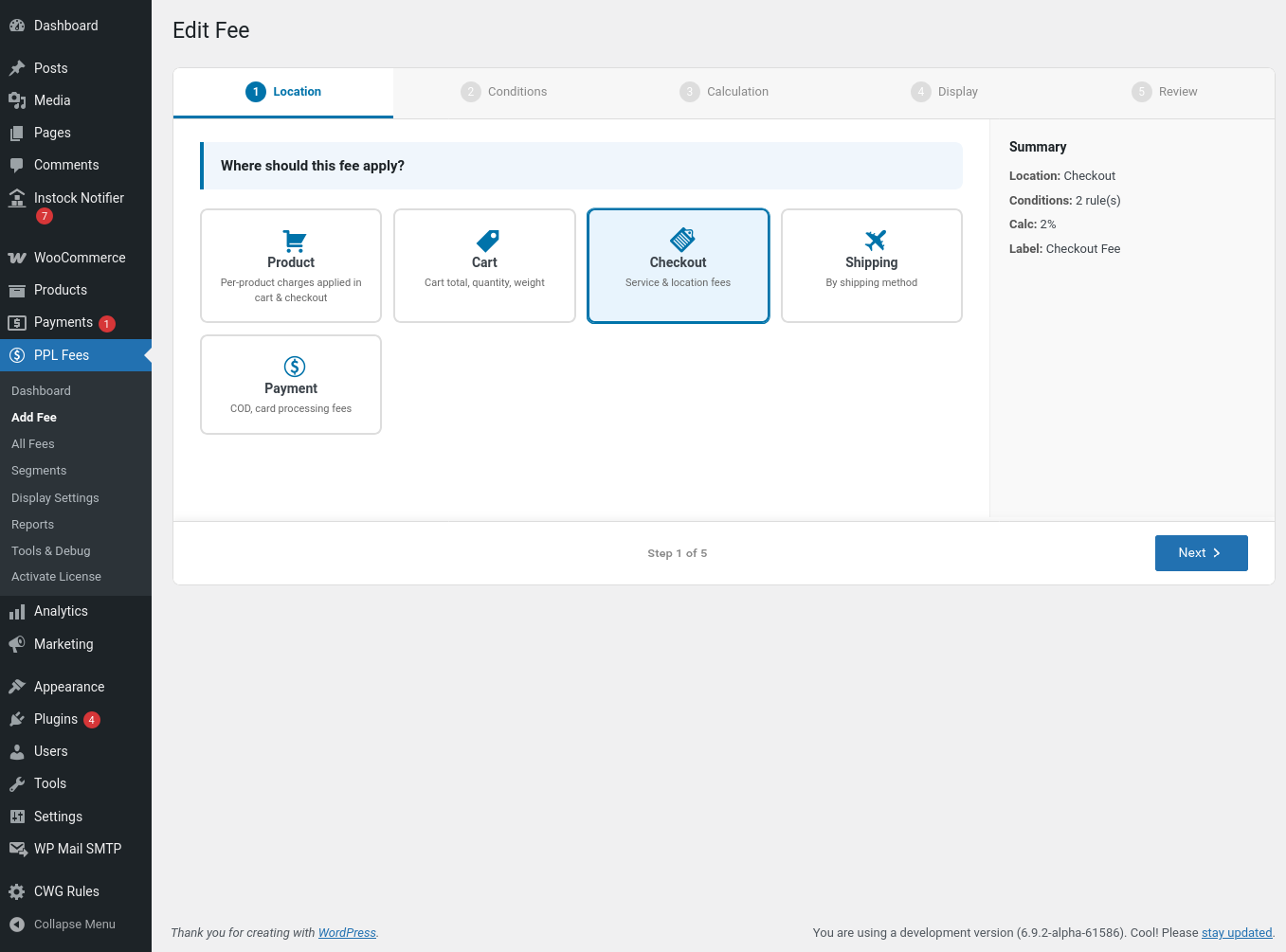
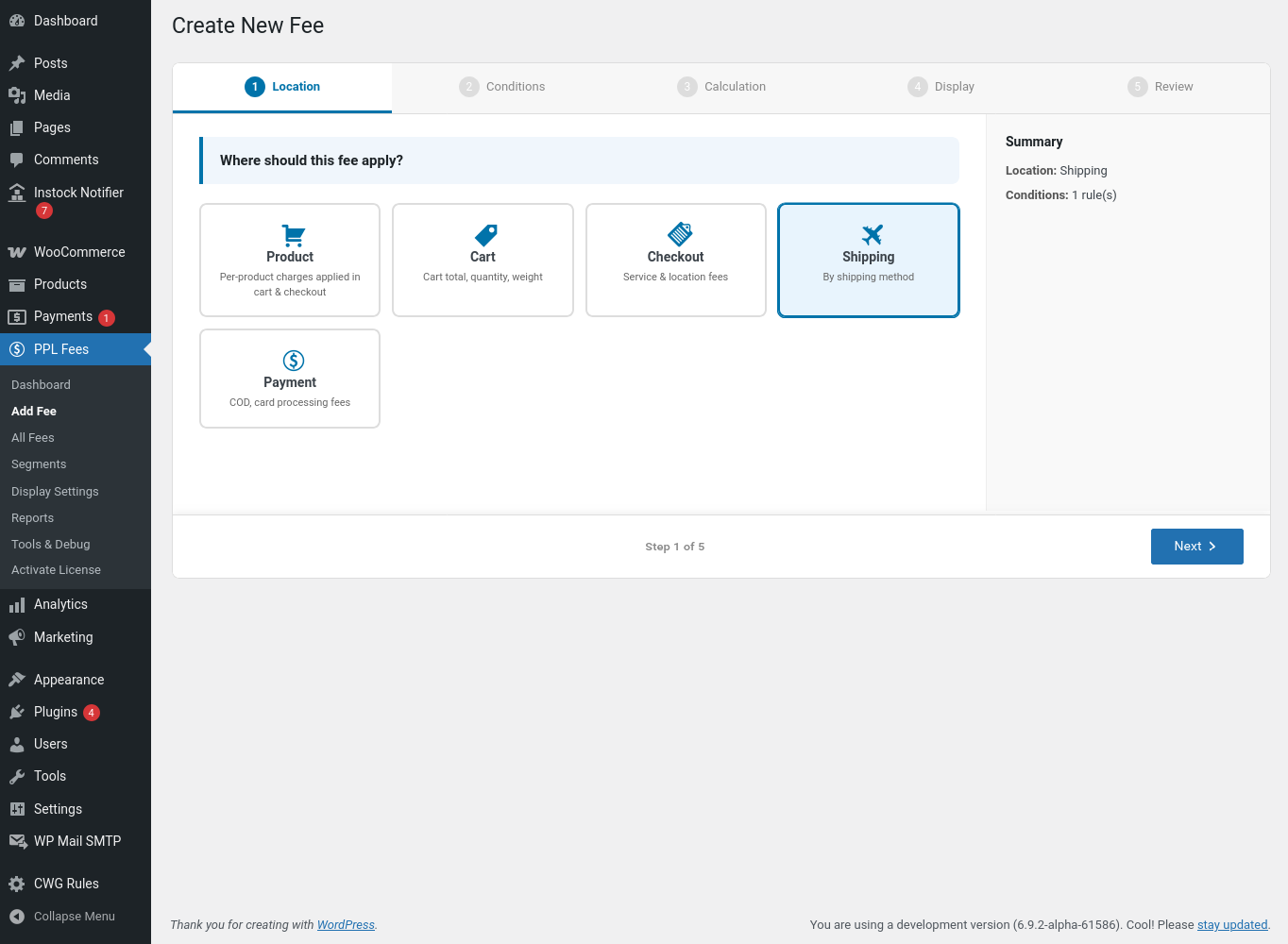
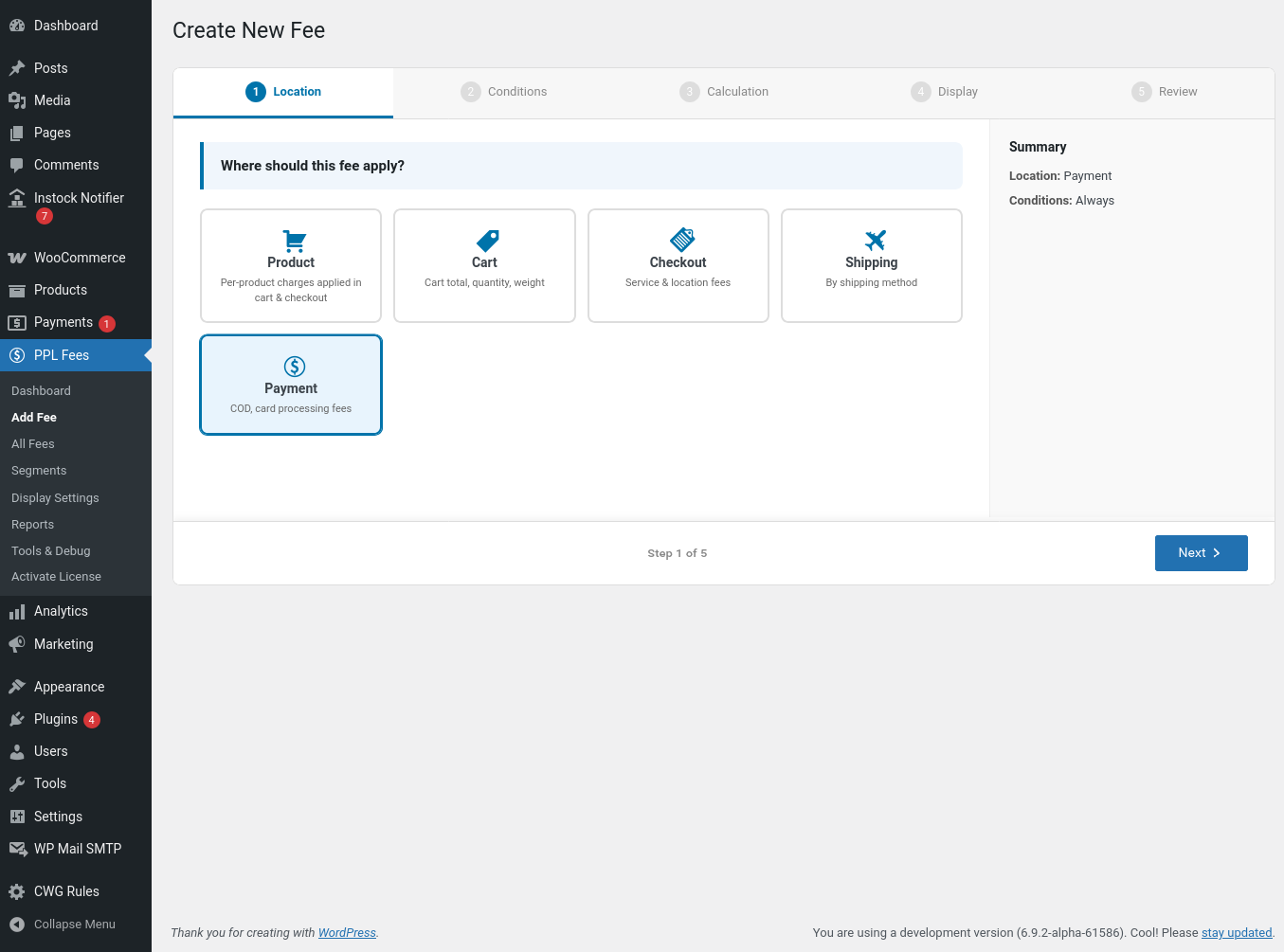
Step 1: Choose Fee Location
Select where the fee should work.
Product
Applies only when specific products are added to the cart.
Example: Packaging fee for fragile items.
Cart
Applies based on cart totals or quantity.
Example: Small order surcharge below ₹500.
Checkout
Applies based on customer details.
Example: Regional service charge.
Shipping
Applies after the customer selects a shipping method.
Example: Express handling fee.
Payment
Applies after the customer selects a payment gateway.
Example: Cash on delivery surcharge.
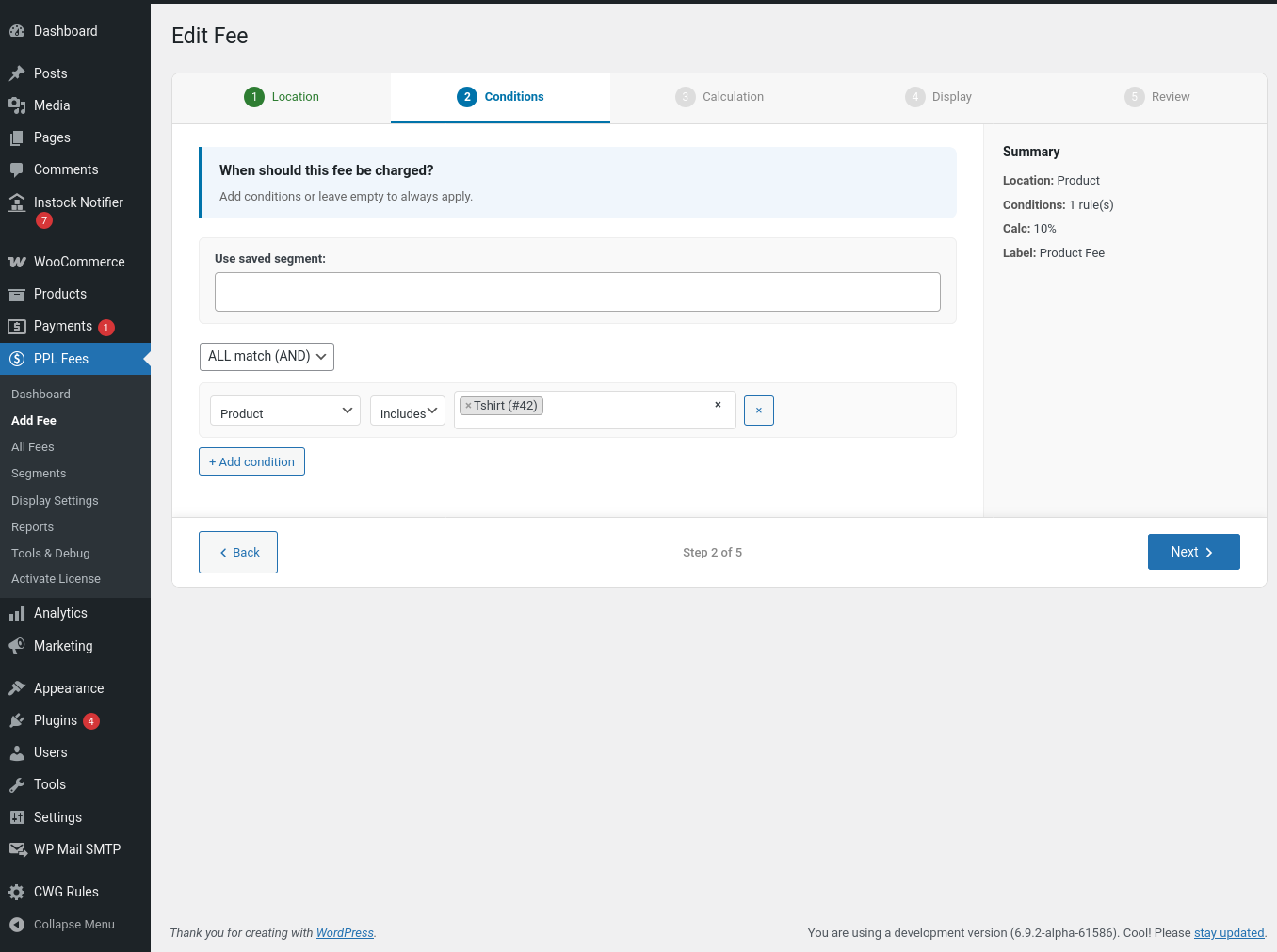
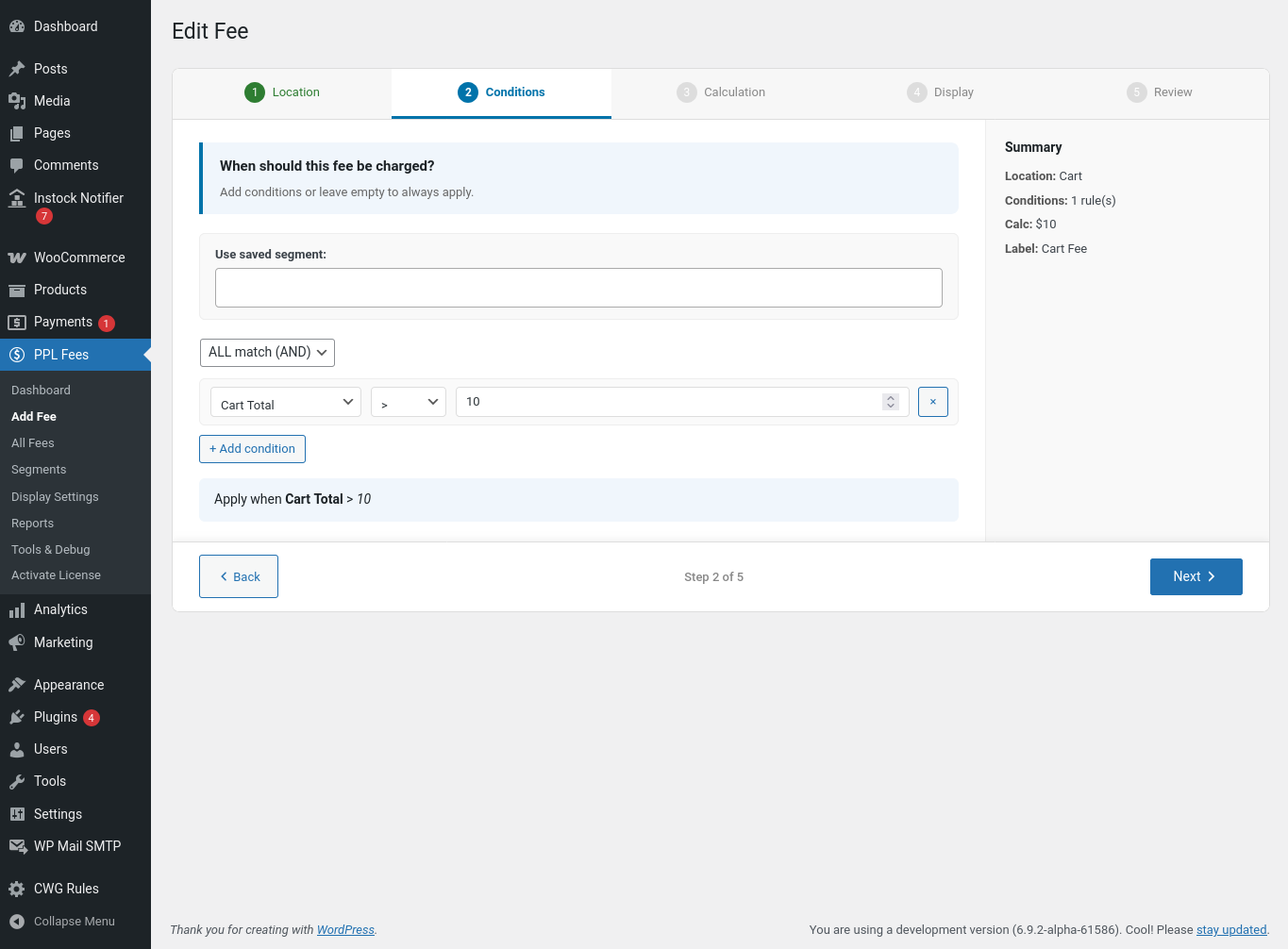
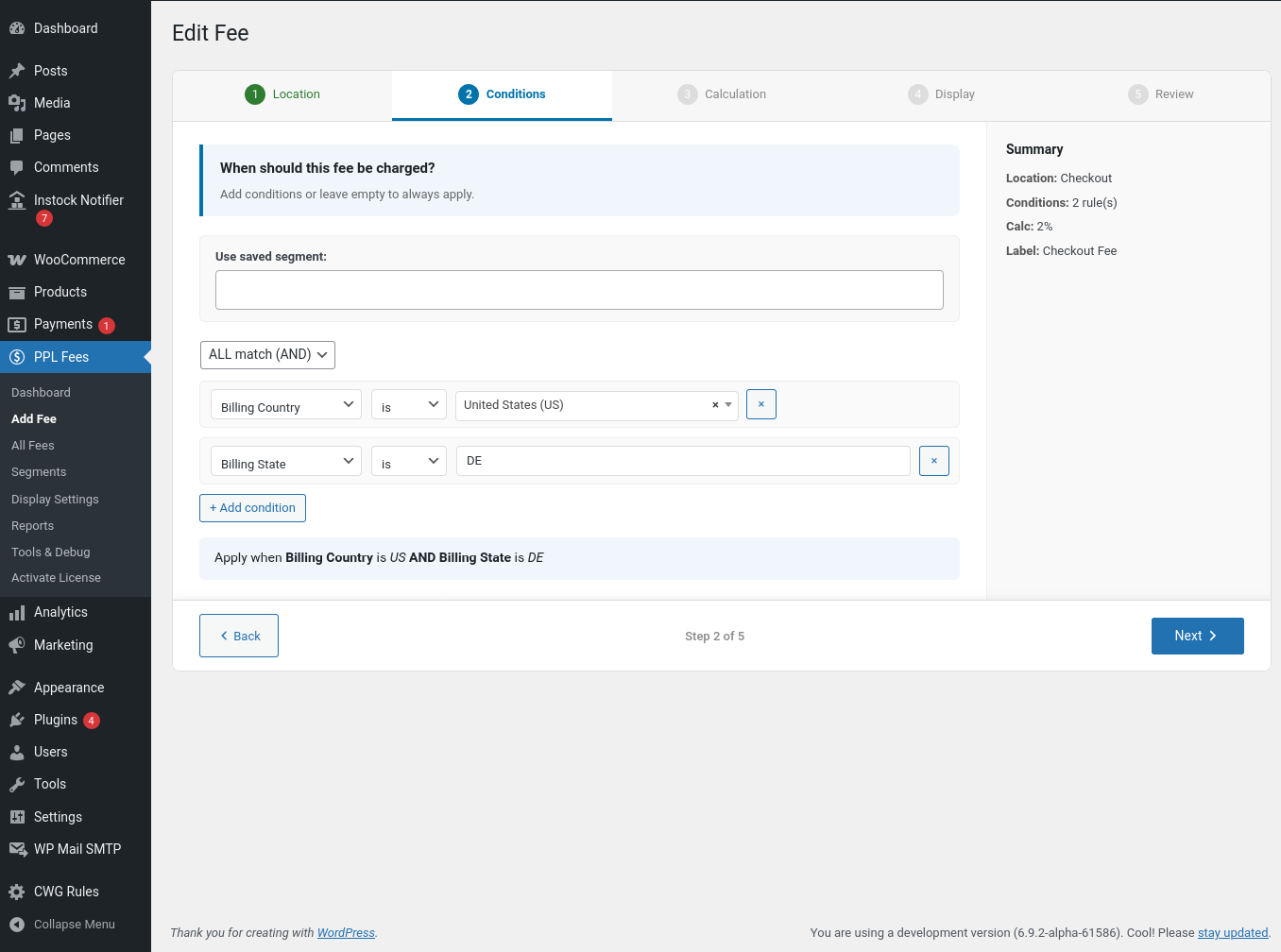
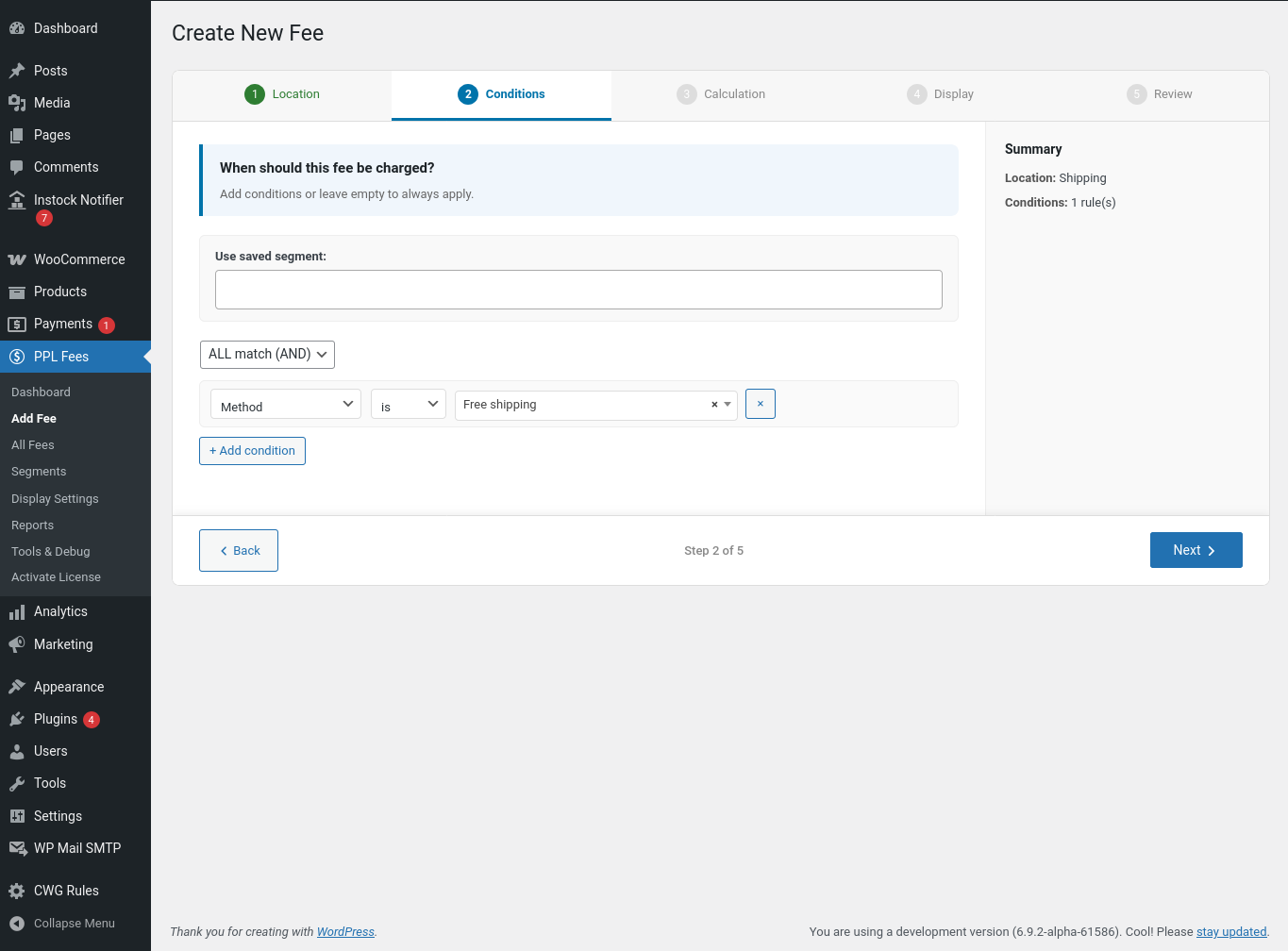
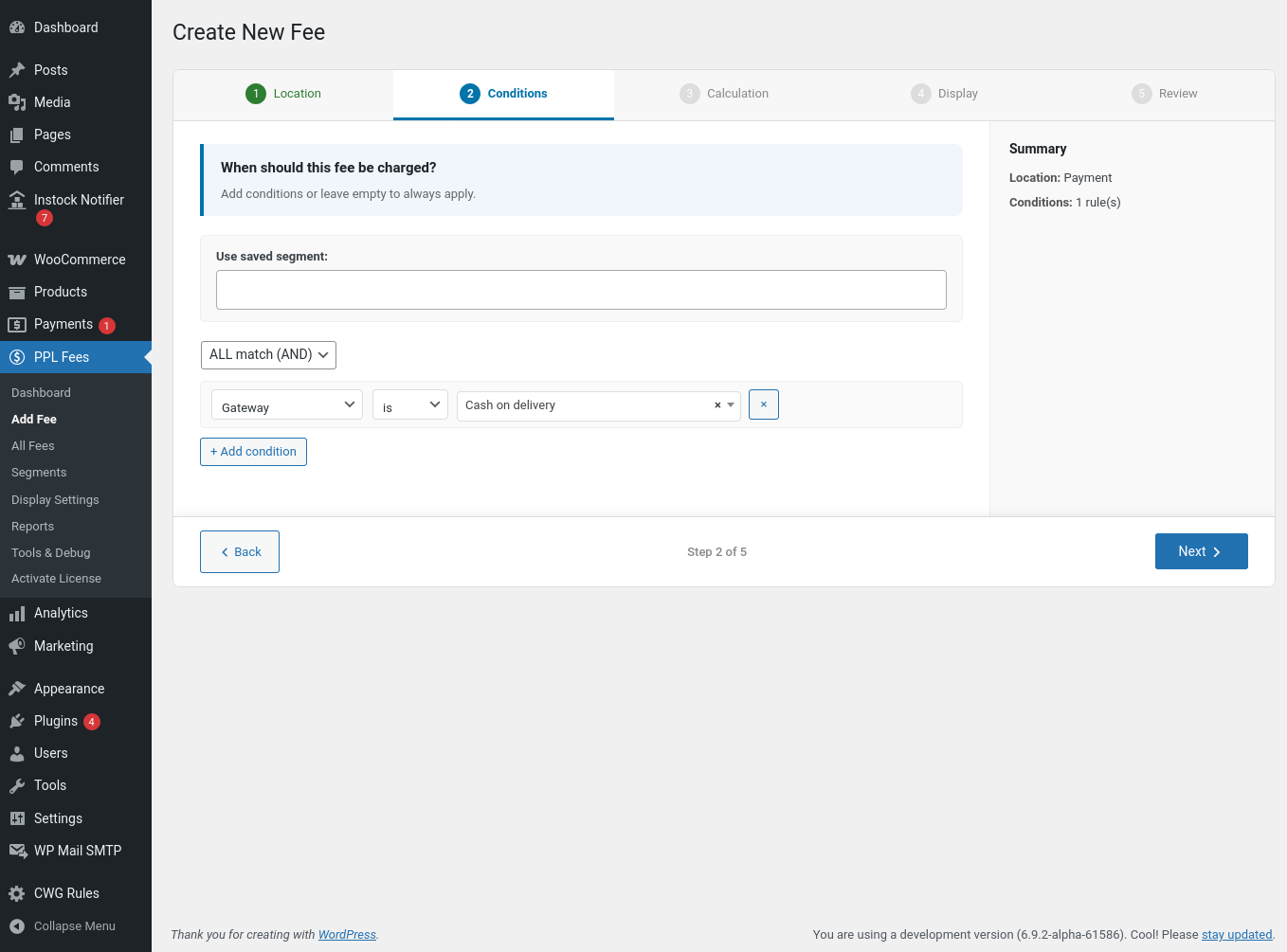
Step 2: Add Conditions (Optional)
If you leave conditions empty, the fee always applies.
You can add one or multiple rules.
Available condition groups
Product
-
Specific product or variation
-
Category
-
Tag
Cart
-
Cart subtotal
-
Item count
-
Quantity
-
Weight
Customer
-
Logged in or guest
-
User role
Location
-
Billing country
-
Billing state
-
Shipping country
-
Postcode
Shipping
-
Selected shipping method
Payment
-
Selected payment gateway
Time
-
Day of week
You can combine multiple conditions to match store logic.
Example:
Apply fee only when
Country = USA AND Payment Method = COD AND Cart Total < 500
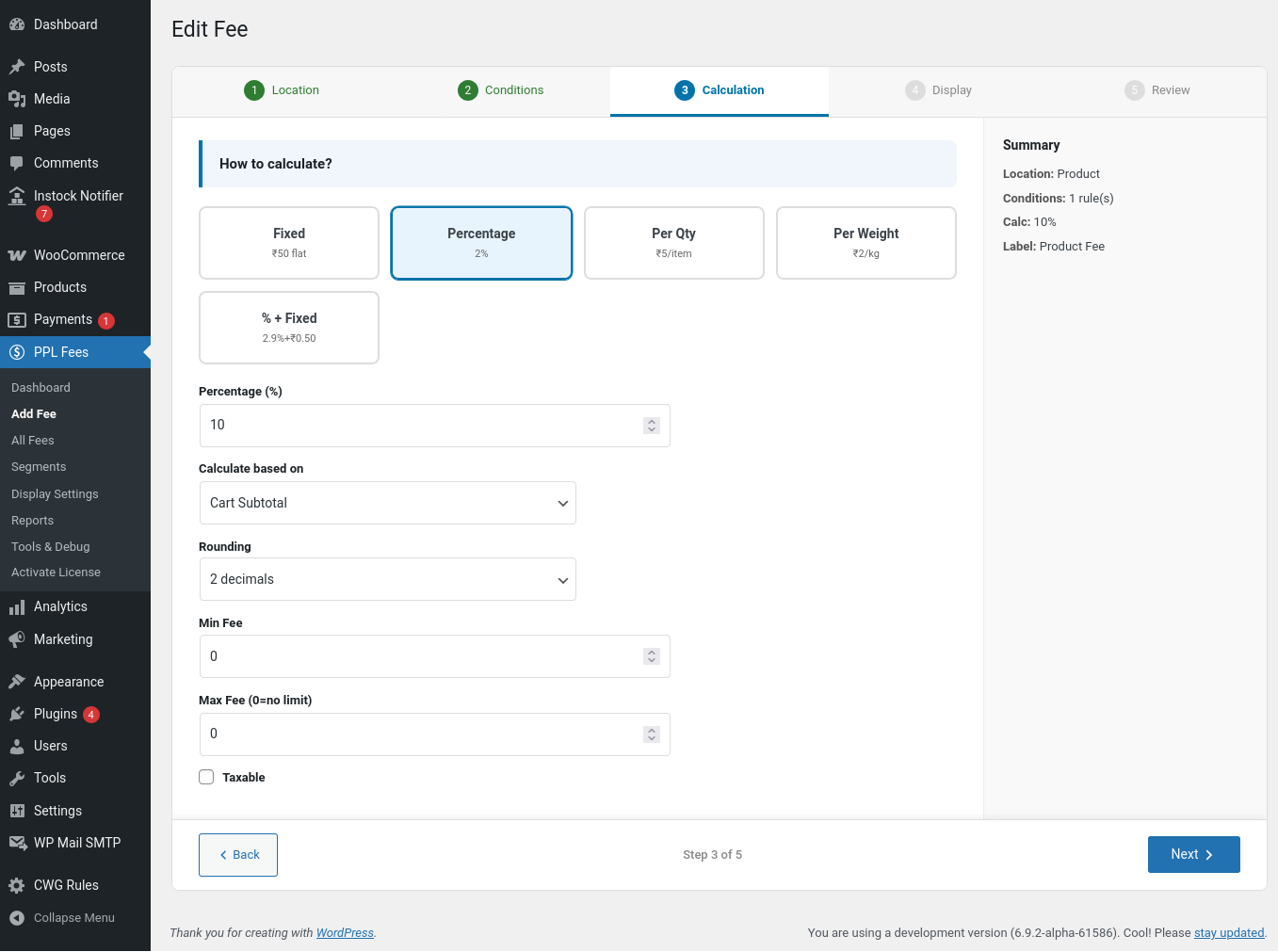
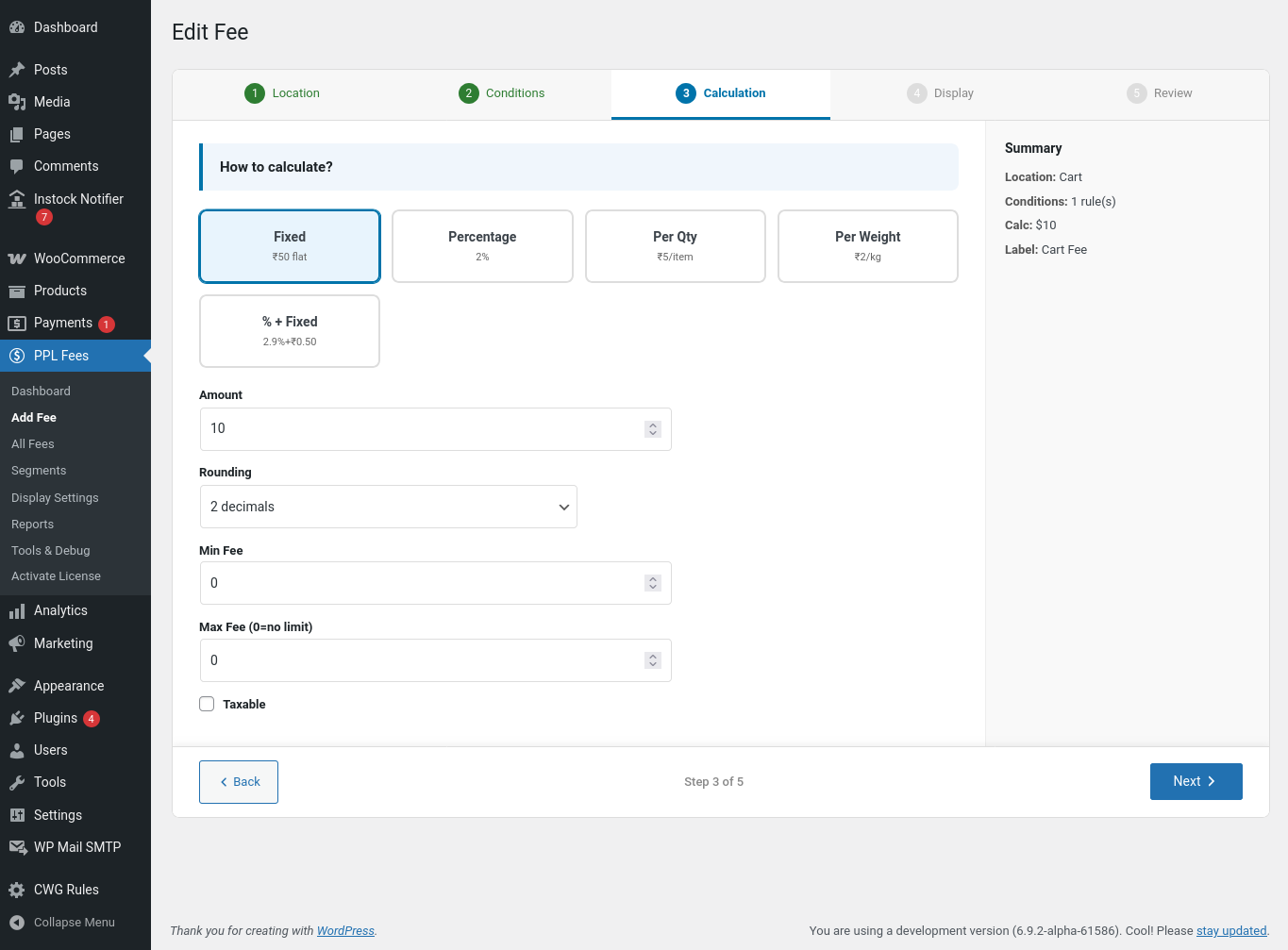
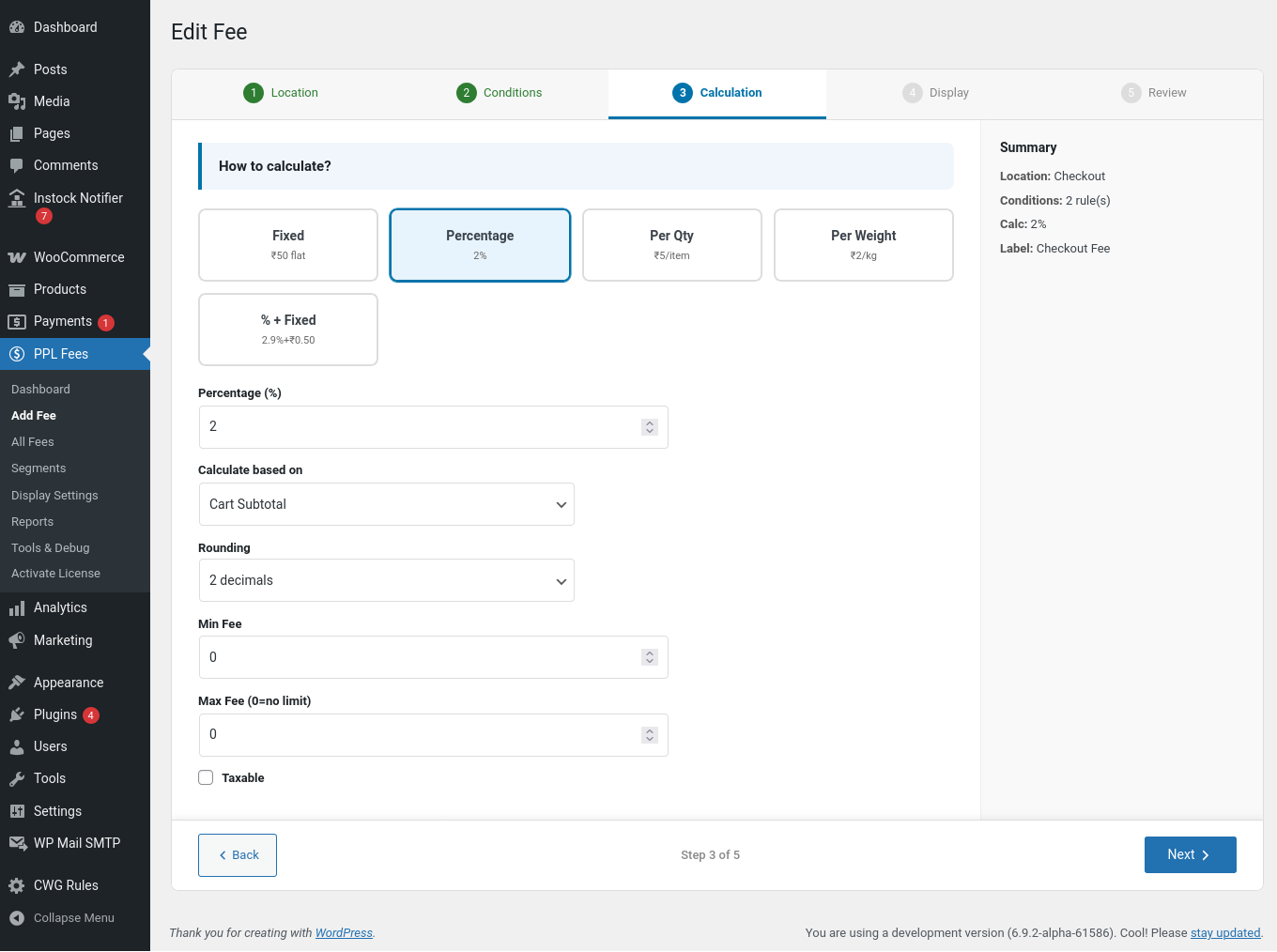
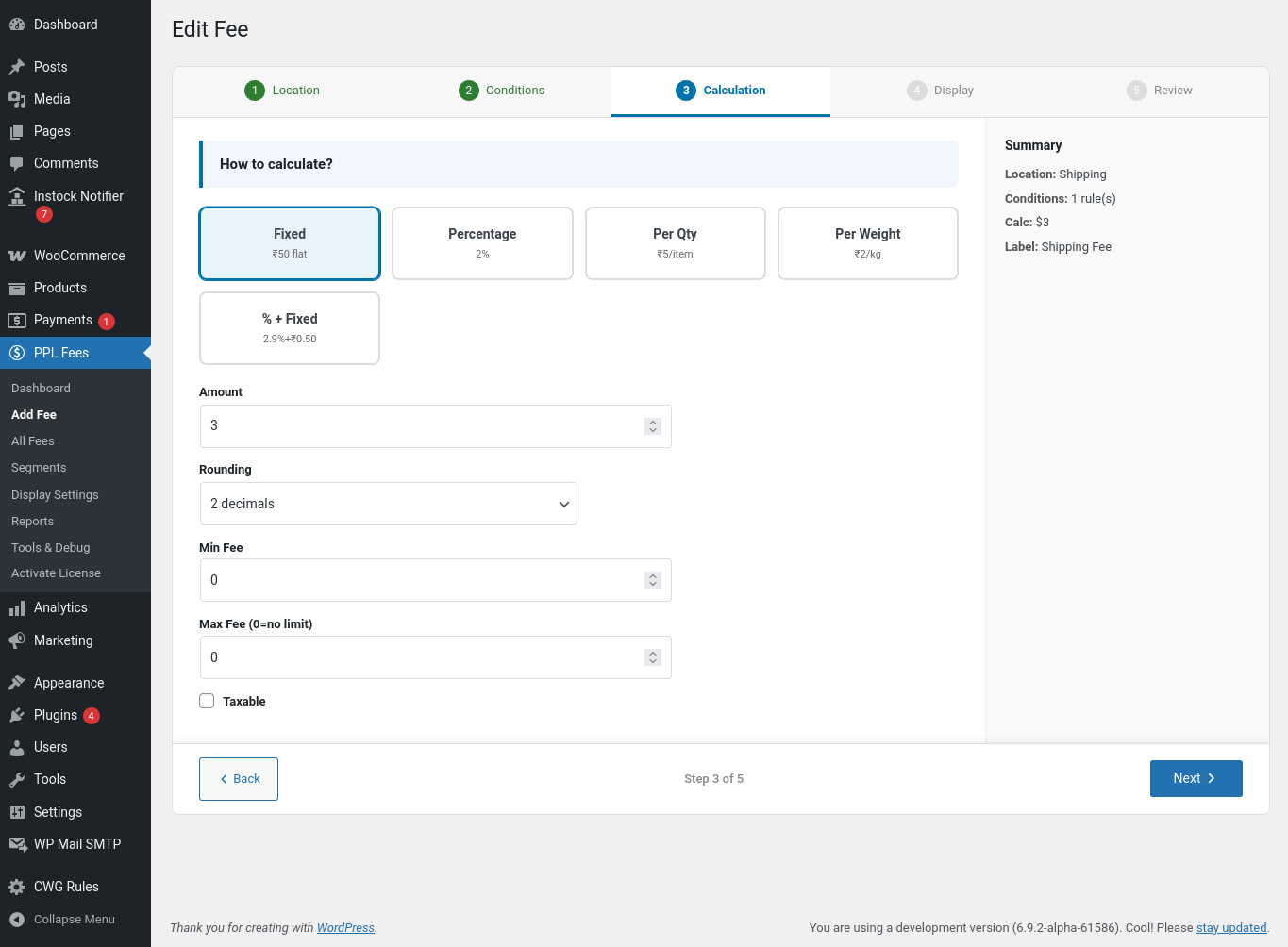
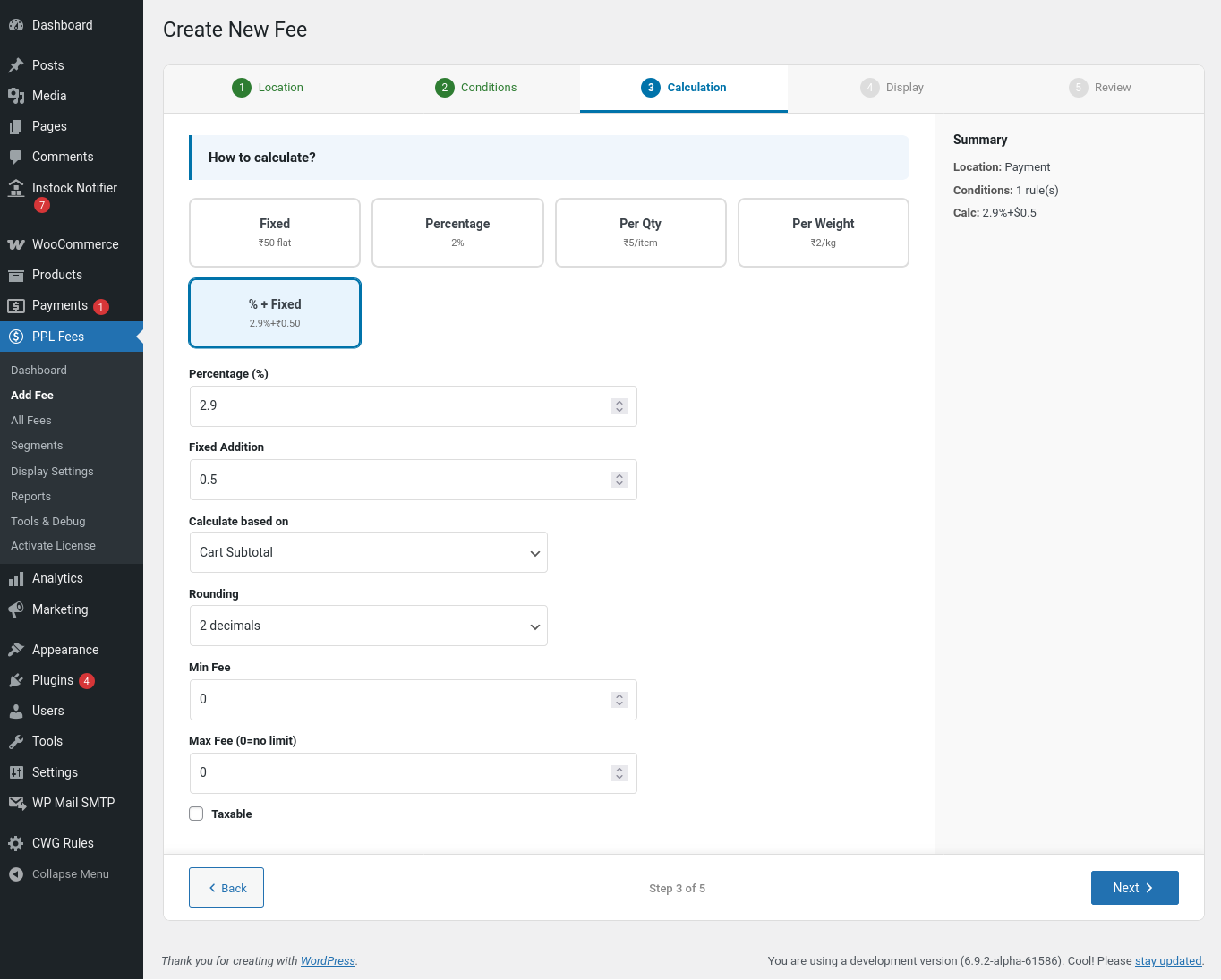
Step 3: Select Calculation Method
Choose how the fee amount is calculated.
Fixed
Adds a flat amount
Example: ₹30 handling fee
Percentage
Based on cart or item price
Example: 2% service charge
Percentage + Fixed
Useful for gateway processing
Example: 2.9% + 0.5$
Per Quantity
Amount multiplied by quantity
Example: $2 per item
Per Weight
Amount multiplied by weight
Example: $10 per kg
You can also configure:
-
Minimum fee
-
Maximum fee
-
Rounding behavior
-
Taxable or non-taxable fee
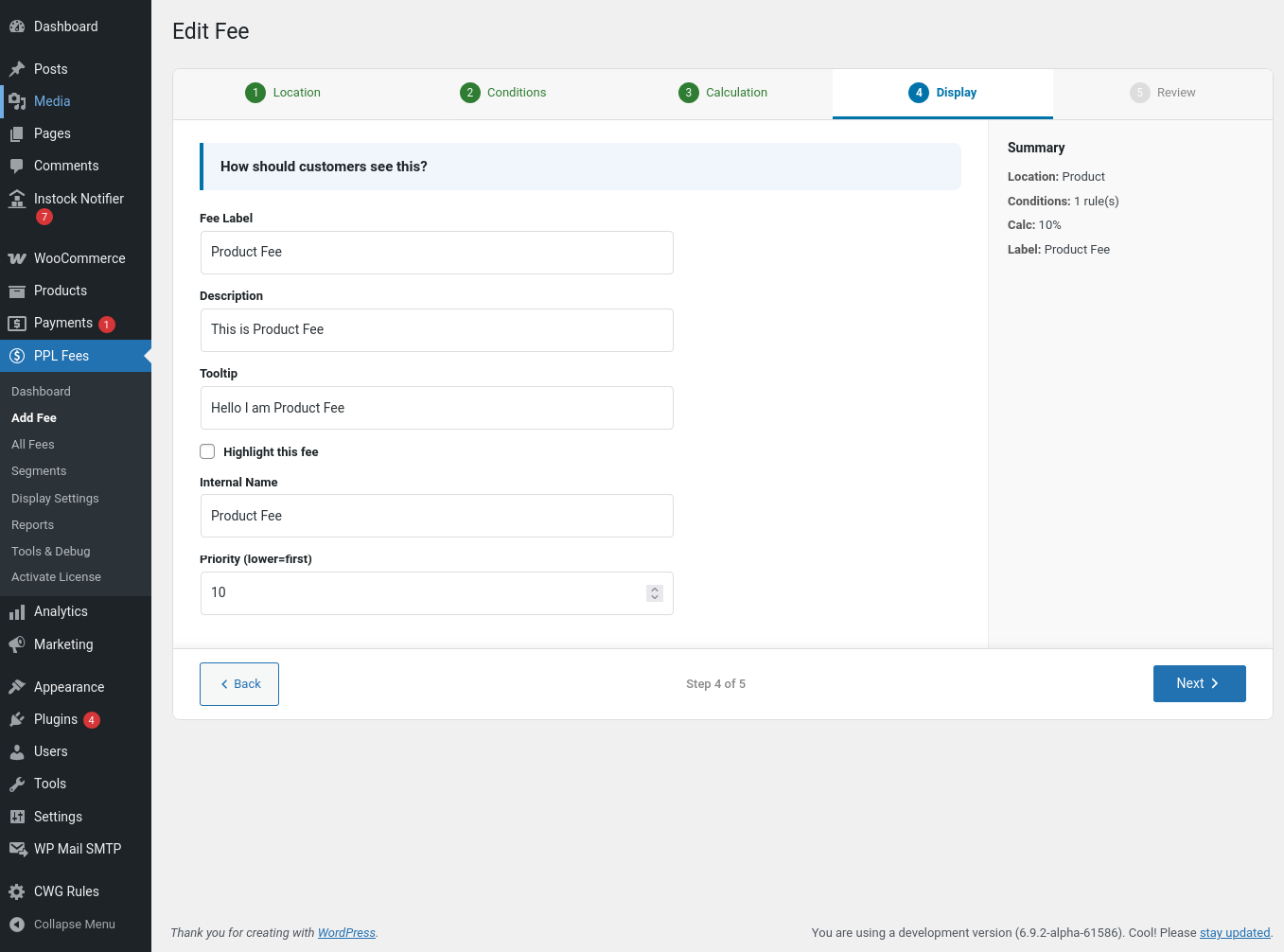
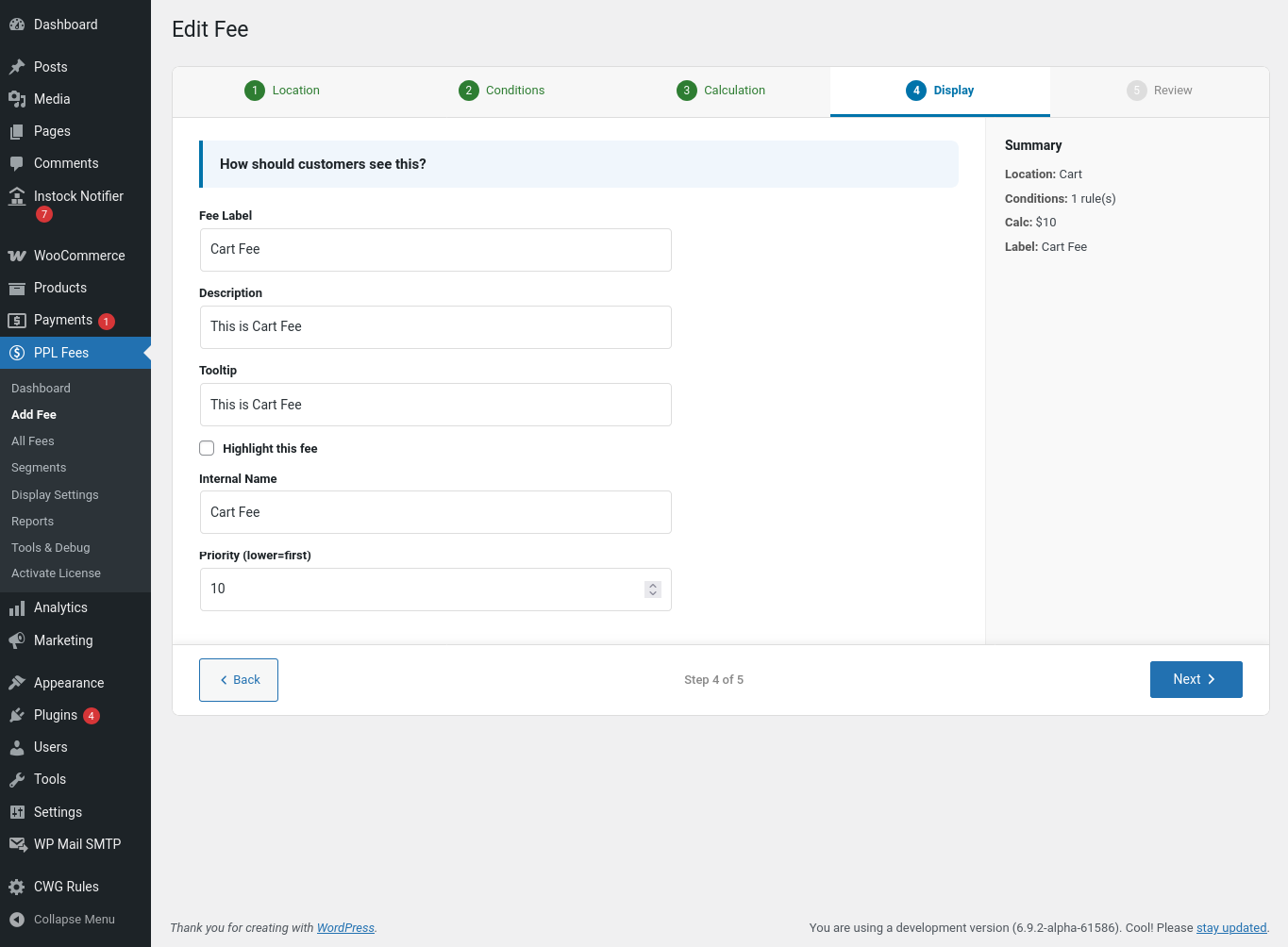
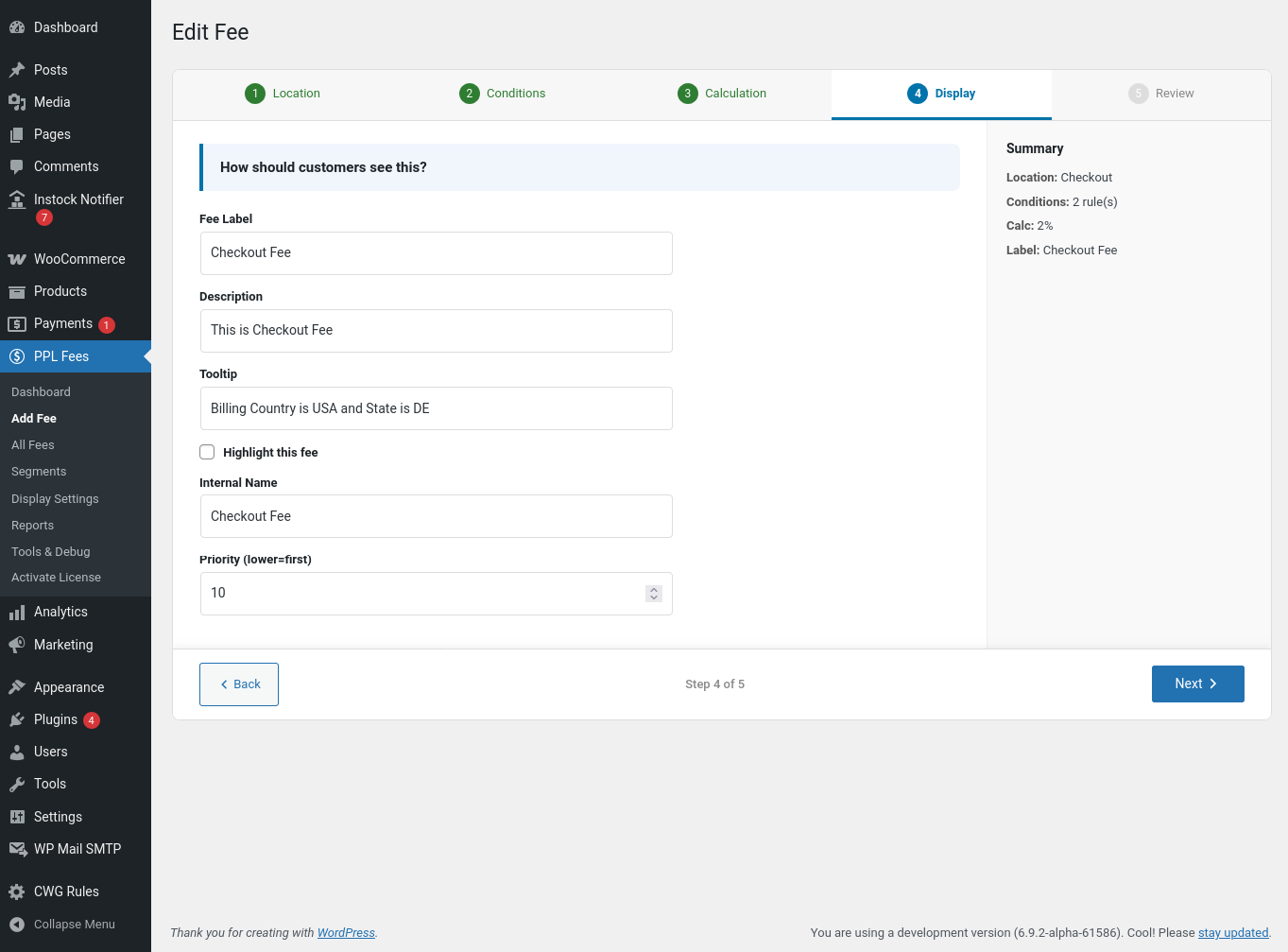
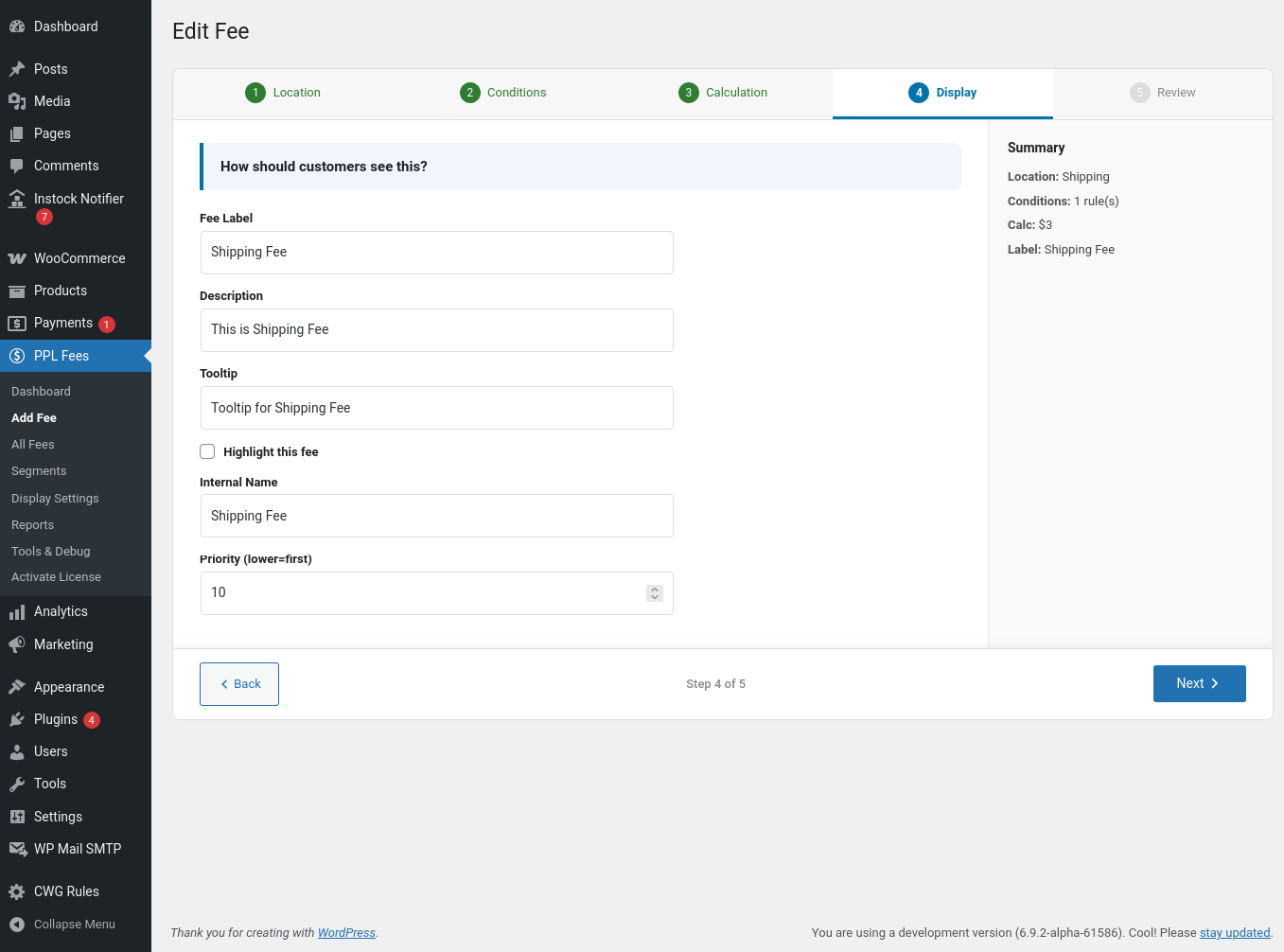
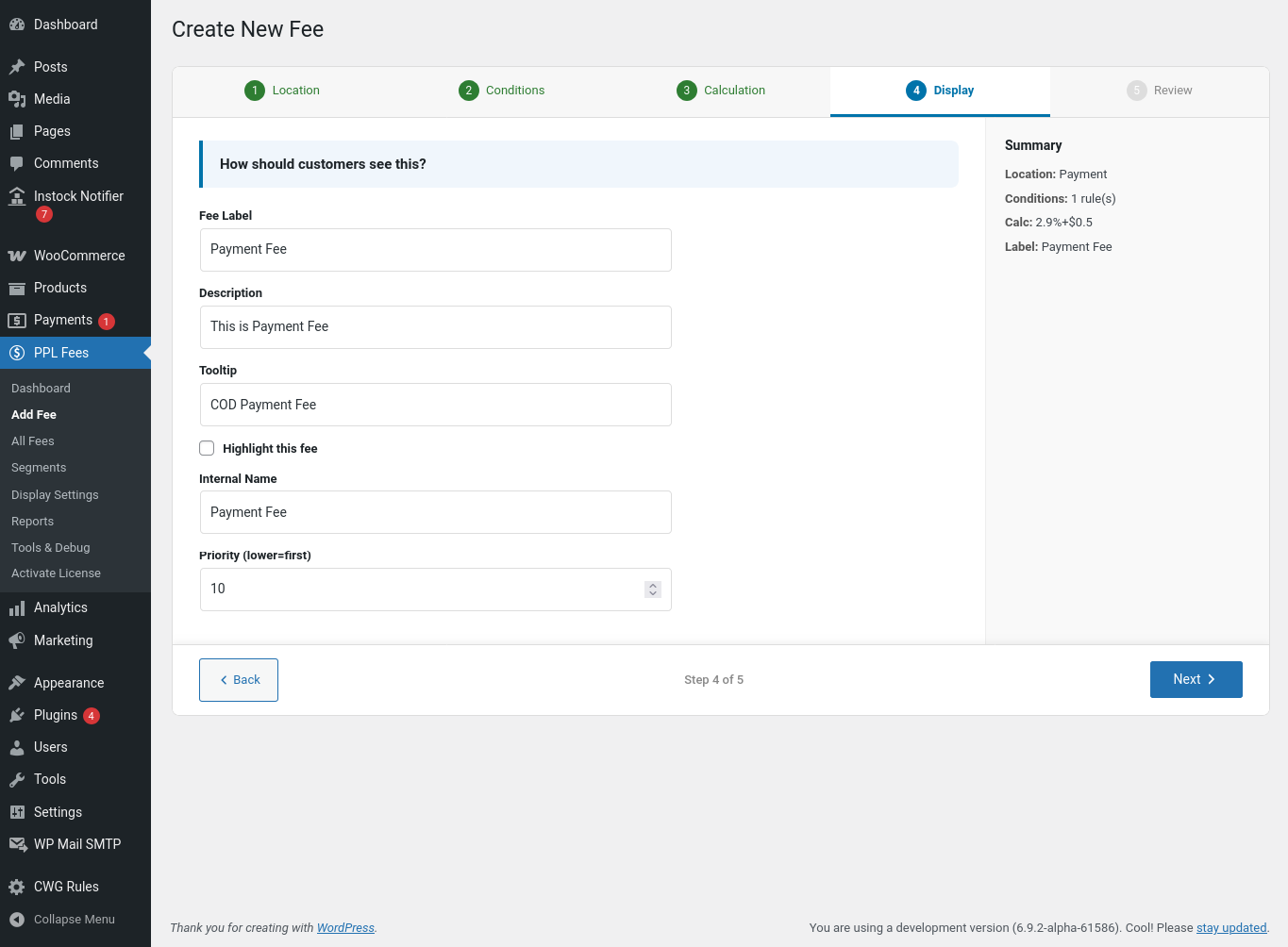
Step 4: Display Settings
Configure what the customer sees.
-
Fee label (example: Handling Fee)
-
Tooltip description
-
Highlight fee row
-
Merge or separate fee lines (global setting)
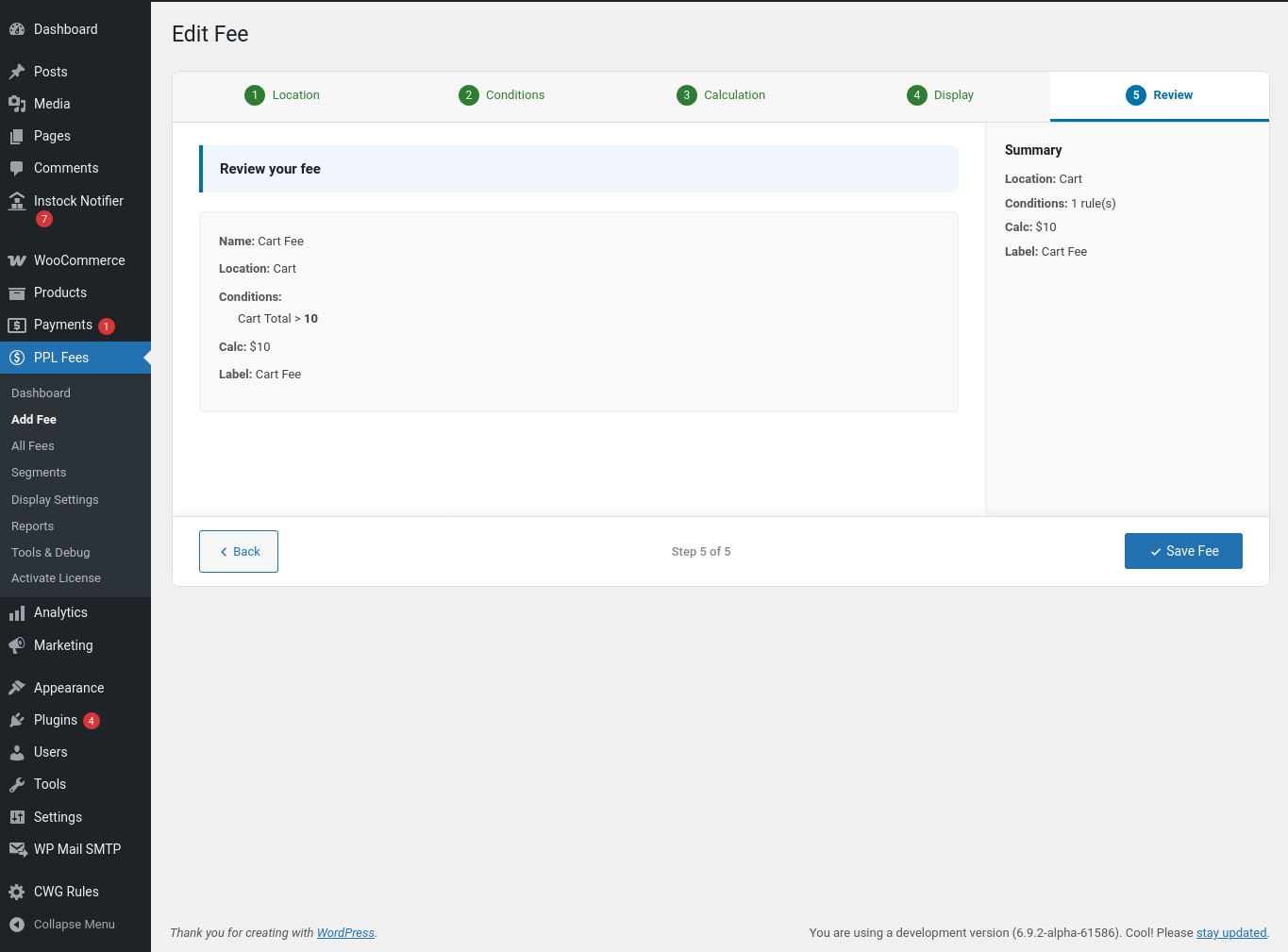
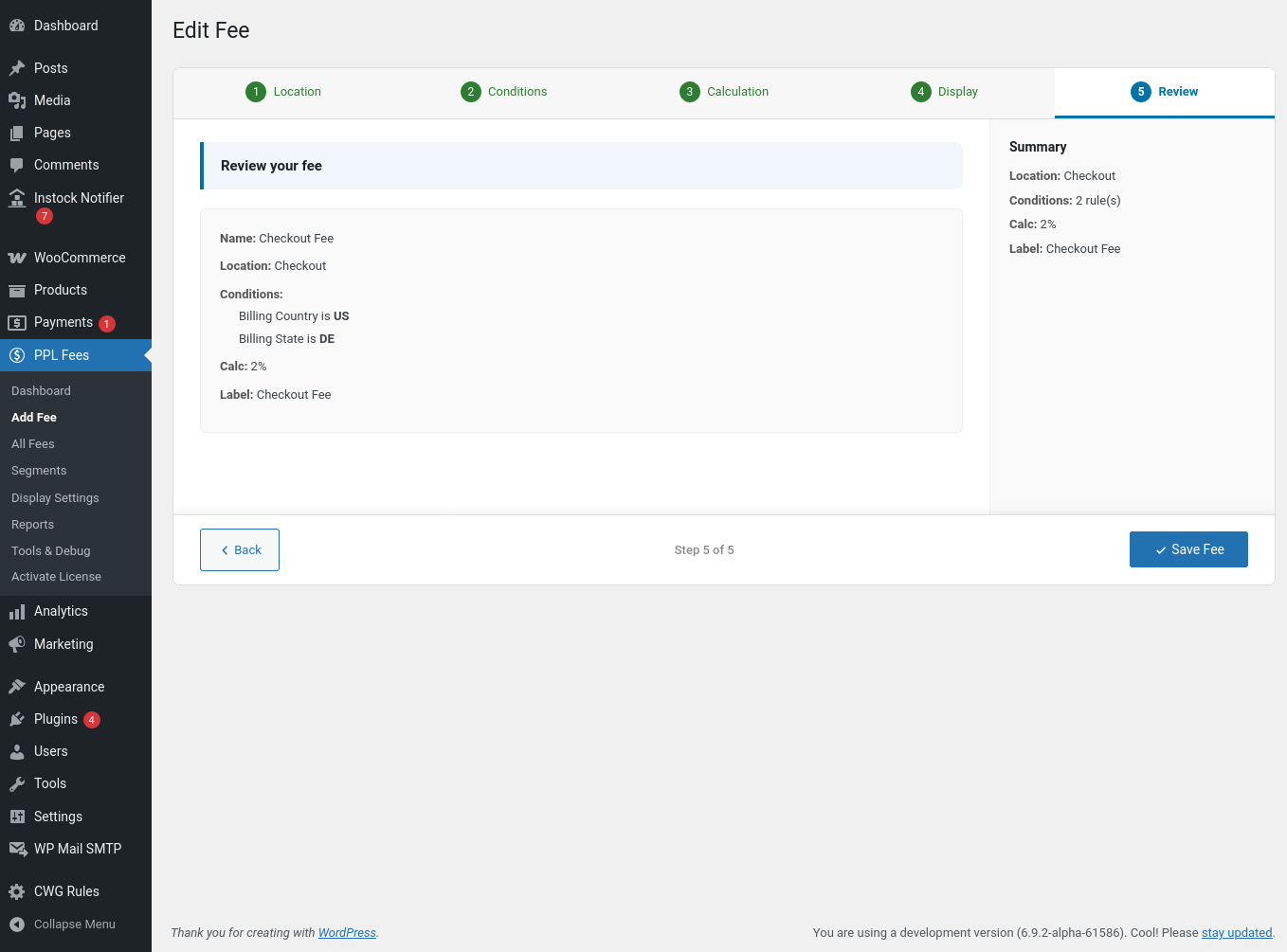
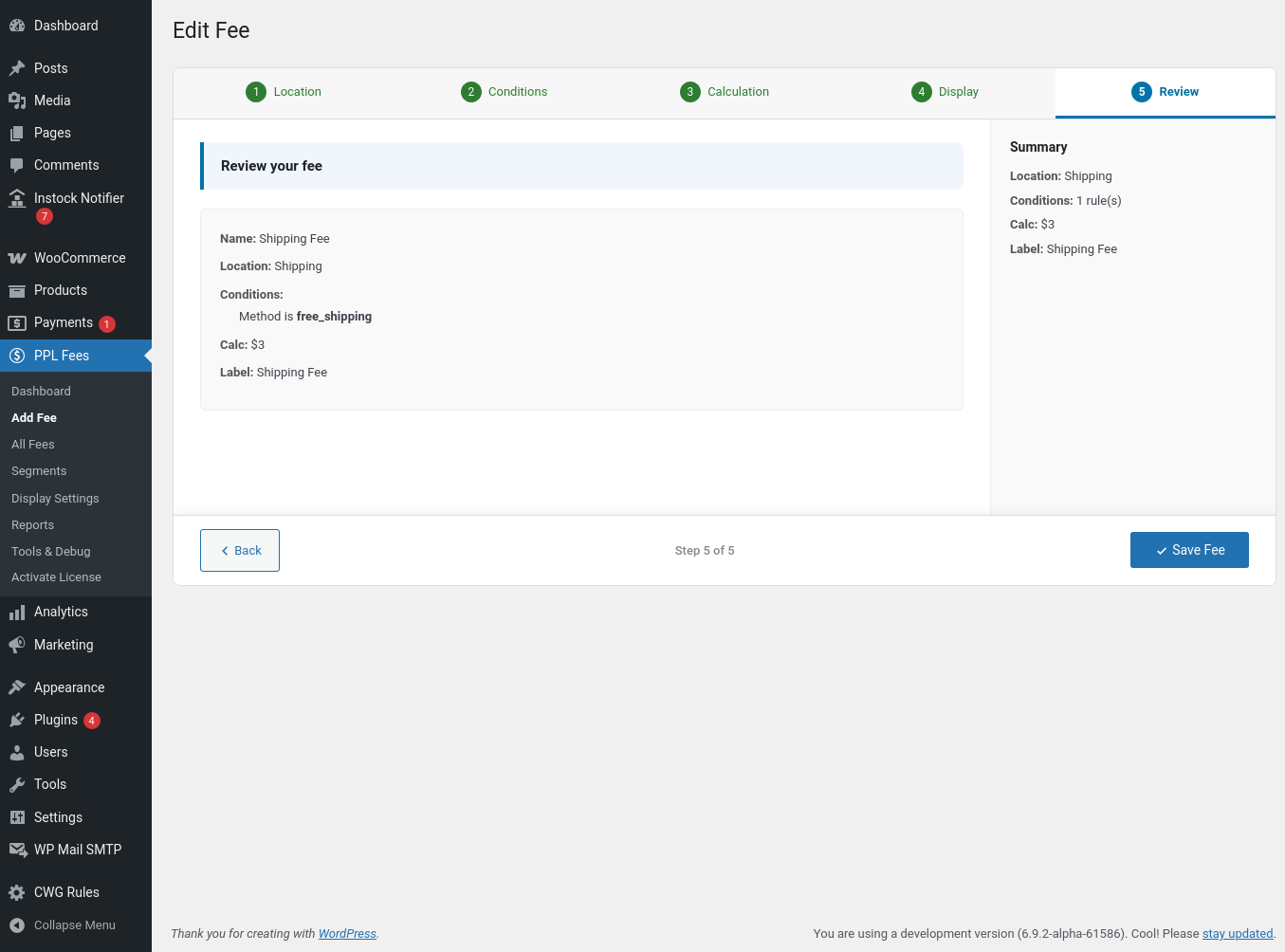
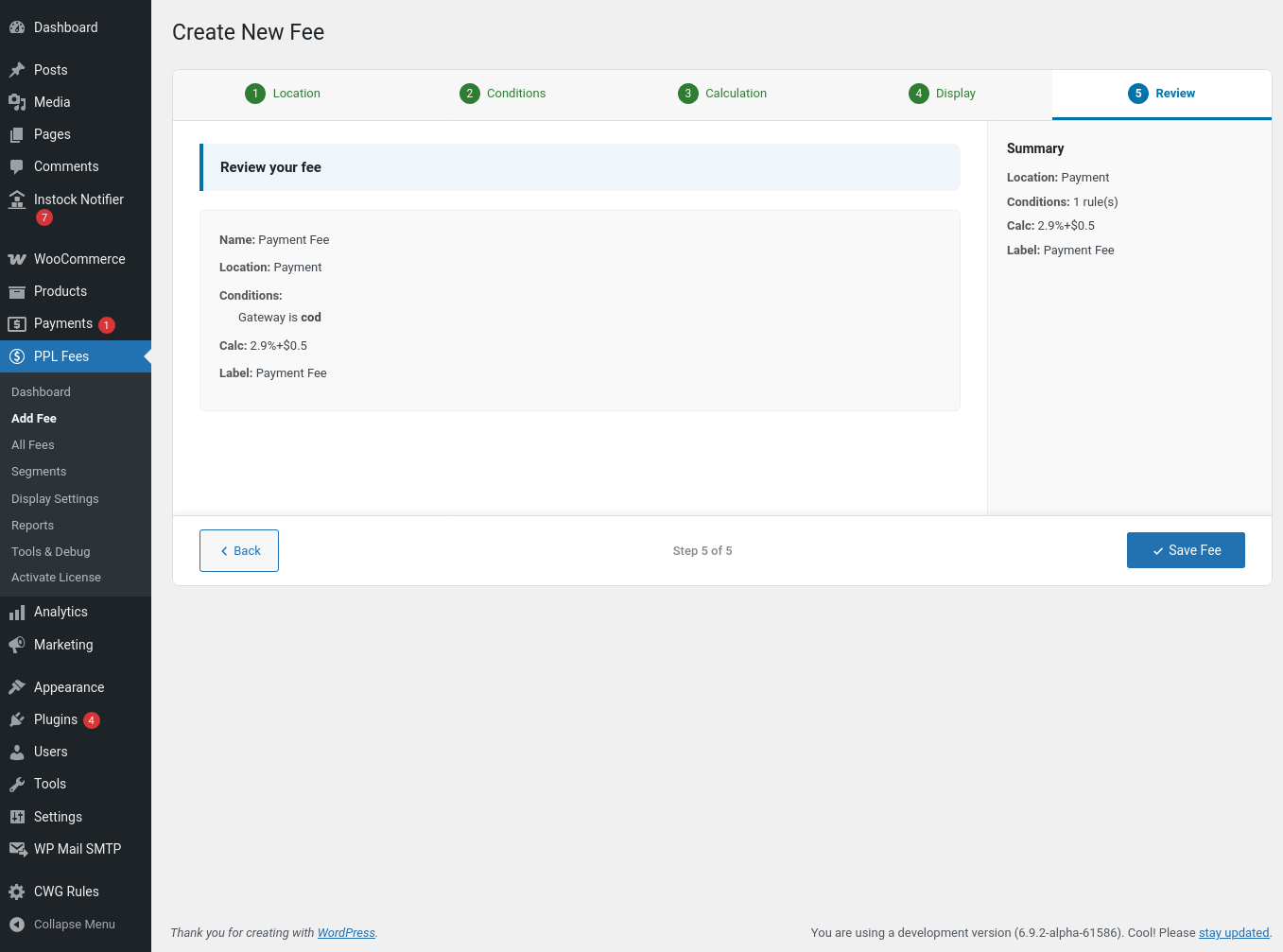
Step 5: Save and Test
Save the fee.
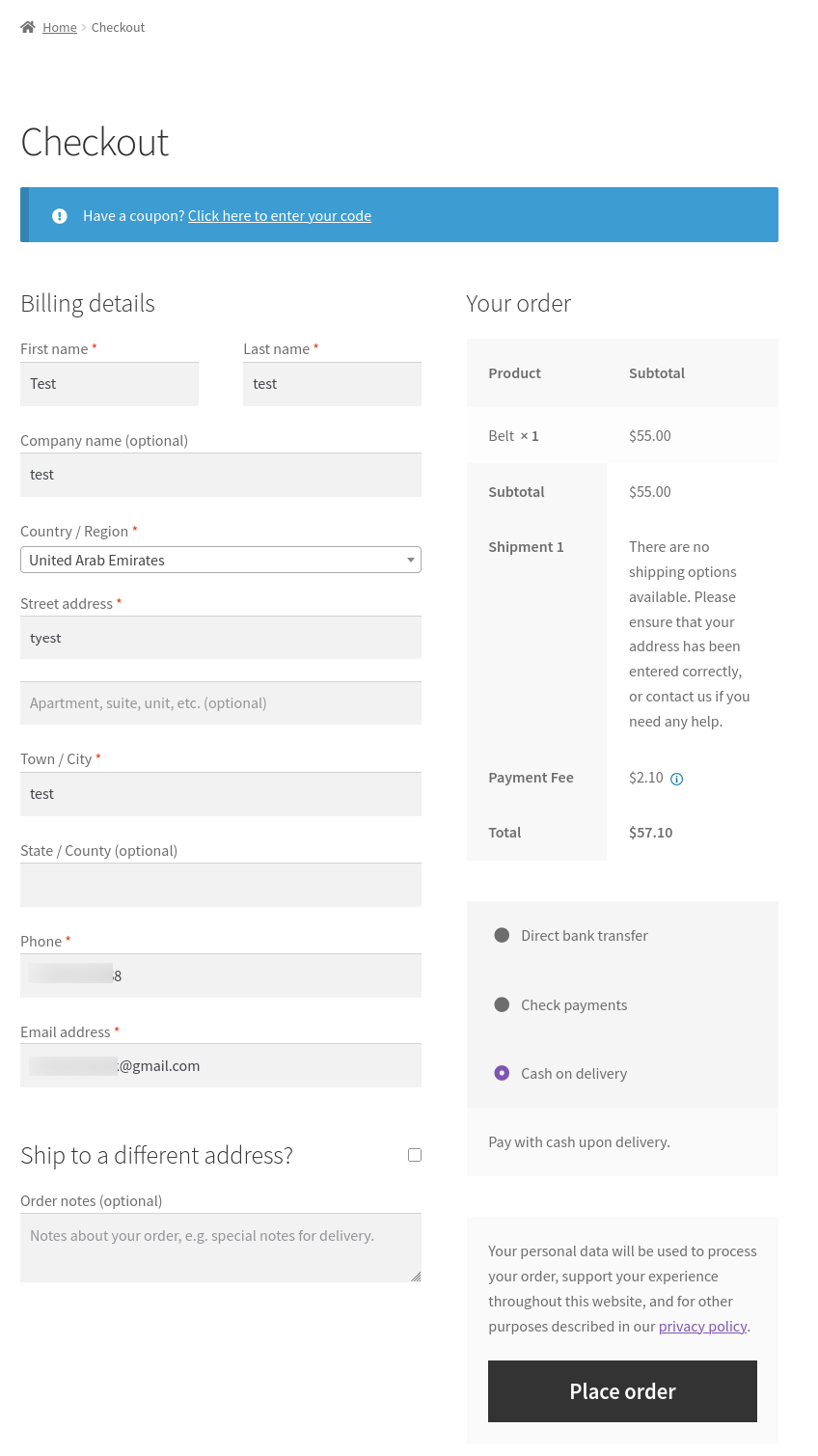
Now test by adding products to the cart and changing:
-
quantity
-
location
-
shipping method
-
payment method
The fee should appear only when conditions match.
Example configurations
Cash on Delivery Charge
Location: Payment
Condition: Payment Method = COD
Calculation: Fixed ₹40
Small Order Fee
Location: Cart
Condition: Cart Subtotal < ₹500
Calculation: Fixed ₹50
Card Processing Fee
Location: Payment
Condition: Payment = Stripe
Calculation: 2.9% + ₹5
Fragile Product Packaging
Location: Product
Condition: Category = Glass Items
Calculation: ₹20 per item
Express Shipping Handling
Location: Shipping
Condition: Shipping Method = Express
Calculation: Fixed ₹30
Changelog
v1.0
-
Initial Release
Additional information
| License | Starter License, Growth License, Ultimate License |
|---|
Related products
Plugins
Advanced Shipment Tracking for WooCommerce
Complete fulfillment manager for WooCommerce: unlimited tracking numbers, 55+ carriers, custom order statuses (Shipped, Partially Shipped,…
From
$119.00
$59.00
One-time

Plugins
Gift Cards for WooCommerce
Gift Cards for WooCommerce is a complete gift card plugin with a live card designer, atomic…
From
$99.00
$49.00
One-time

Christmas Plugins
Christmas Snow for WordPress
$0.00
One-time

Plugins
Composite Products for WooCommerce
Build customizable WooCommerce products with a powerful composite builder and bundle mode. Live pricing, logic rules,…
From
$119.00
$59.00
One-time